

Novu uses FCM version V1
Step 1: Generate your service account key from Firebase
Get your project’s service account credentials from the Firebase Console.- Log in to the Firebase console.
- Create a new Firebase project or select an existing project.
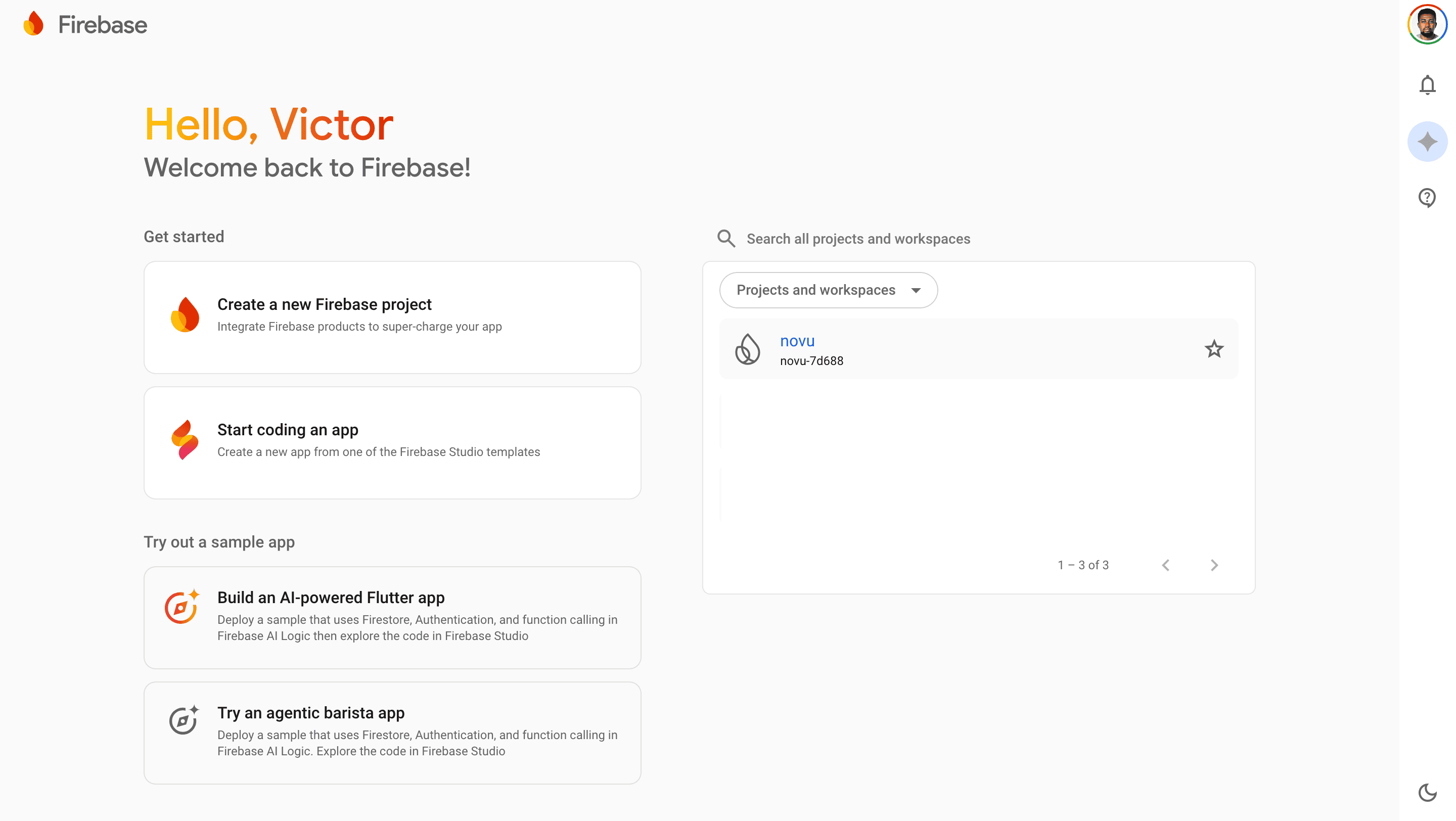
- Click the gear icon ⚙️ next to Project Overview.
- Select Project settings.
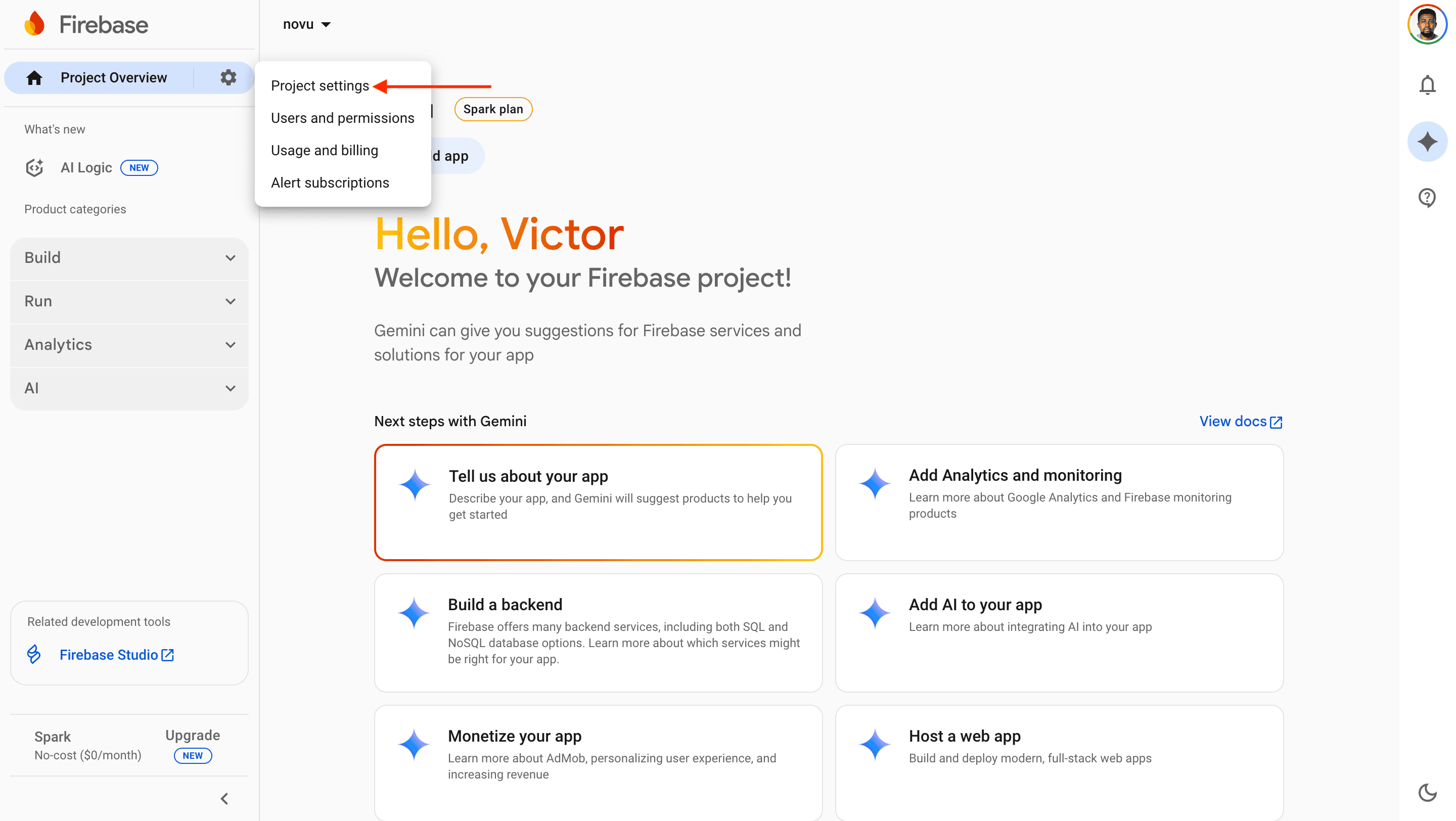
- Click the Service accounts tab.
- Click the Generate new private key button. A confirmation menu appears.
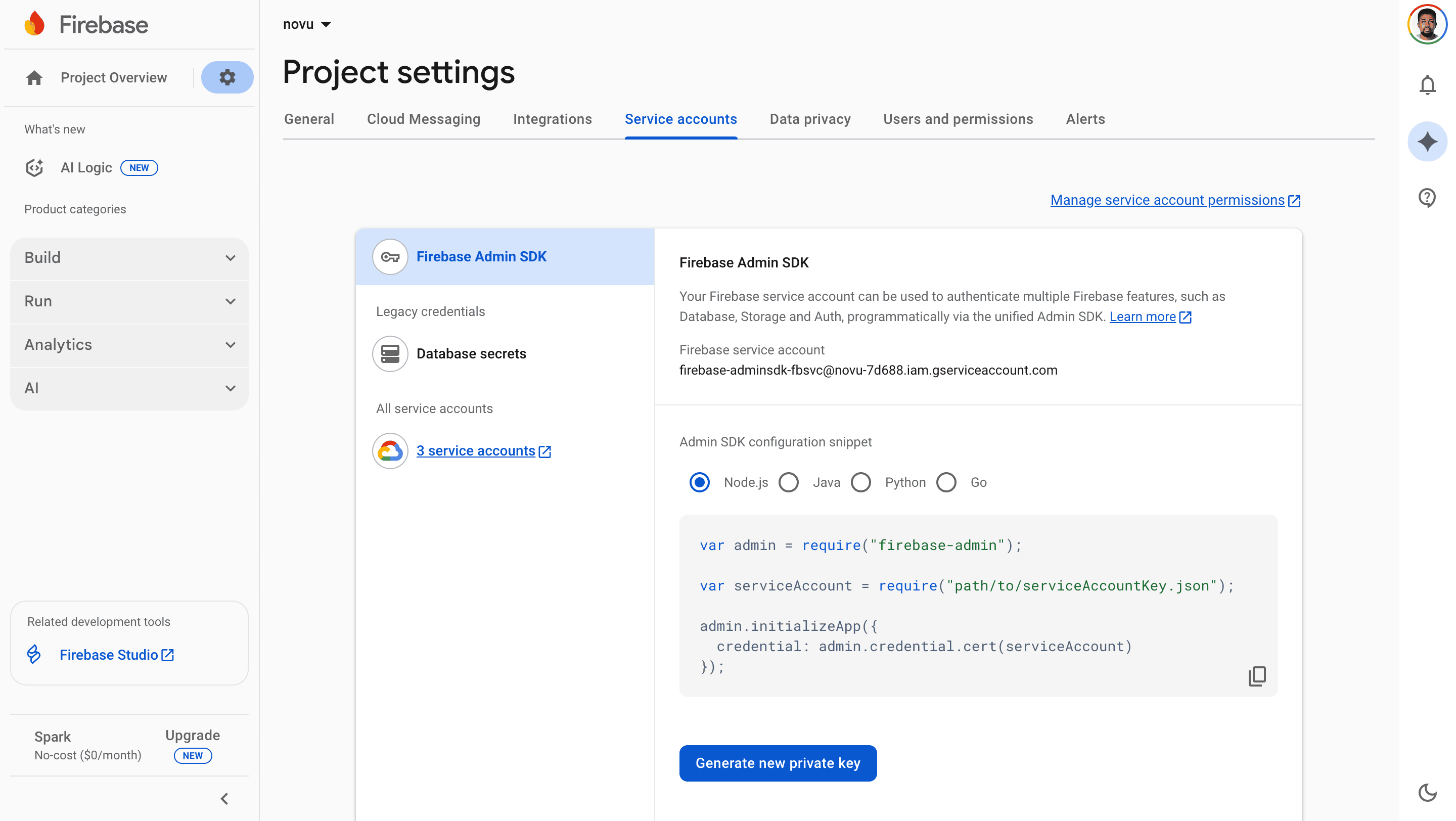
- Click Generate key to download a JSON file containing your credentials.
- Open the downloaded JSON file and ensure it contains these fields:
Step 2: Connect FCM to Novu
Add the credentials to your FCM integration in the Novu dashboard.- Log in to the Novu dashboard.
- Navigate to the Integration Store.
- Click Connect provider.
- Click the Push tab, then select Firebase Cloud Messaging (FCM).
- Open the JSON file you downloaded from Firebase in Step 1.
- Copy the entire content of the JSON file and paste it into the Service Account field in the FCM integration modal.
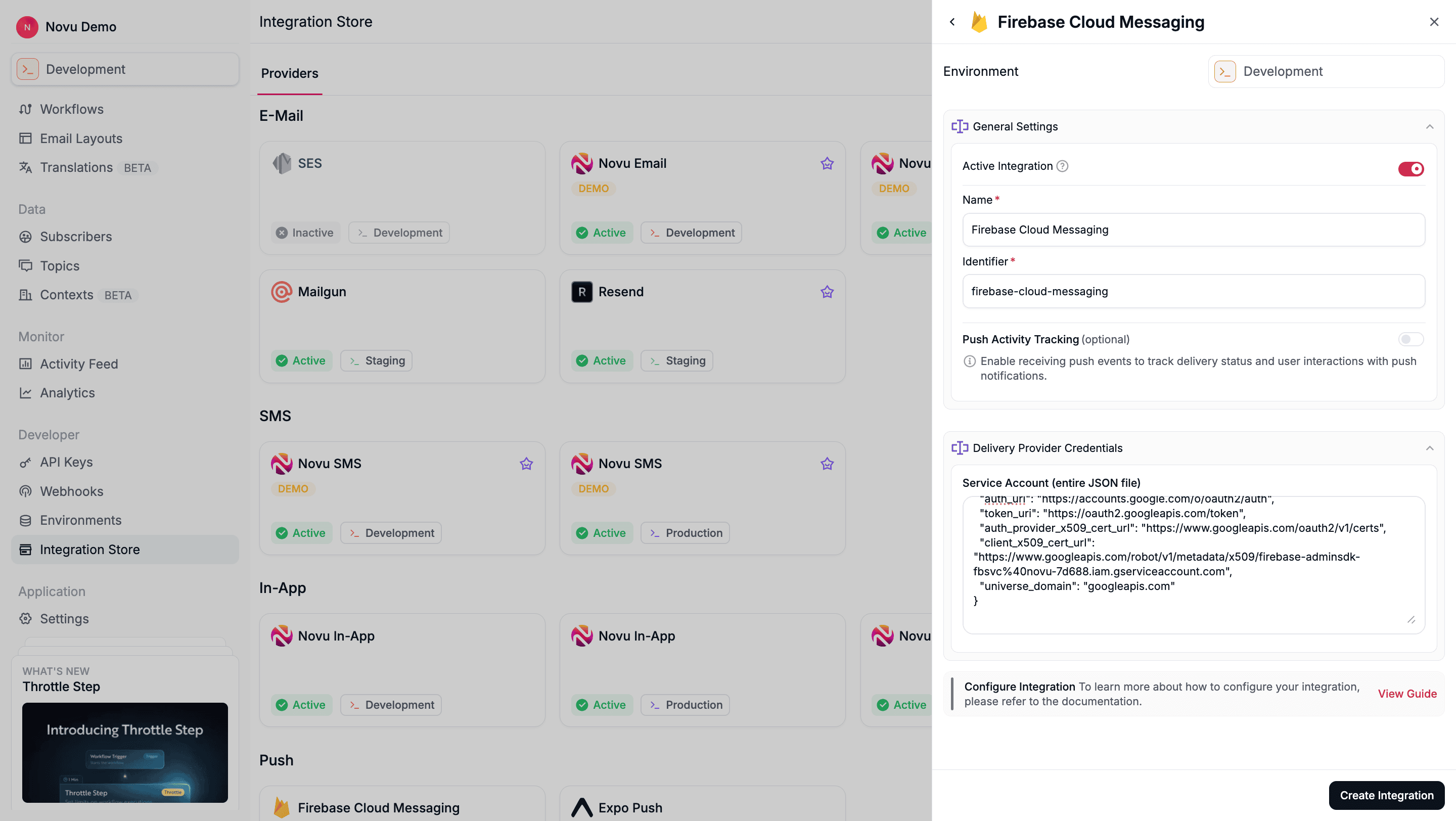
- Click Create Integration to save the integration.
Step 3: Register a subscriber’s device token
Before Novu can send a push notification to your subscriber, you must associate their device’s unique push token with their Novu subscriber profile. You can do this by making an API call to update the subscriber’s credentials.- Node.js
- Python
- Go
- PHP
- .NET
- Java
- cURL
Novu automatically removes invalid device tokens from a subscribers’ profile and then sends the failure details to the
MESSAGE_FAILED webhook.Step 4: Send a notification
Now you’re ready to send a push notification. You can trigger a notification to a subscriber who has a registered device token.- Node.js
- Python
- Go
- PHP
- .NET
- Java
- cURL
Web push with relative links
Suppose you’re using the Firebase (FCM) provider to send push notifications to web browsers via Novu and want users to be returned to the website after clicking the notification. In that case, you must use thelink property with a relative URL.
- Node.js
- Python
- Go
- PHP
- .NET
- Java
- cURL
Frequently asked questions
FCM cost
FCM cost
As per Firebase pricing, Cloud Messaging product is free to use. If other Firebase products are used, then the cost are charged per the product.
The registration token is not a valid FCM registration token
The registration token is not a valid FCM registration token
You might come across an error such as:
Sending message failed due to "The registration token is not a valid FCM registration token". This error happens because of an invalid or stale token. The fix for this is:- Remove the old tokens.
- Generate a new token.
- Save the new token into user subscribers.
FCM notifications sent successfully with no error but push notification is not received in device
FCM notifications sent successfully with no error but push notification is not received in device
Try to generate a new token after clearing device cache and retry with this fresh token.
Sending message failed due to 'Requested entity was not found'
Sending message failed due to 'Requested entity was not found'
This error occurs when your token is no longer valid. To fix this, generate a new token and use it.
Subscriber does not have a configured channel error
Subscriber does not have a configured channel error
This error occurs if the FCM integration is active, but the subscriber is missing from the FCM credentials (deviceTokens). The credentials (deviceTokens) for the subscriber needs to be set.
How to send desktop notifications using FCM
How to send desktop notifications using FCM
Desktop notifications for websites can be sent using FCM webpush.