

Context object schema
When defining contexts, Novu supports multiple formats per key-value pair that let you store and reference metadata relevant to your workflows and templates. Each context consists of:- A
type(for example, tenant, app, or region). - An
idthat uniquely identifies the specific context instance. - An optional
dataobject that holds additional properties available to your templates.
- Node.js
- Python
- Go
- PHP
- .NET
- Java
- cURL
Create a Context
You can create a new context via the Novu dashboard or API when you want to register reusable metadata. After creation, this context becomes available to all workflows and templates within your environment.Create a context via dashboard
Use the dashboard to manually define contexts that represent key business entities.1
Log in to the Novu dashboard
Open the Novu Dashboard.
2
Open Contexts
In the Novu dashboard sidebar, click Contexts.
3
Create context
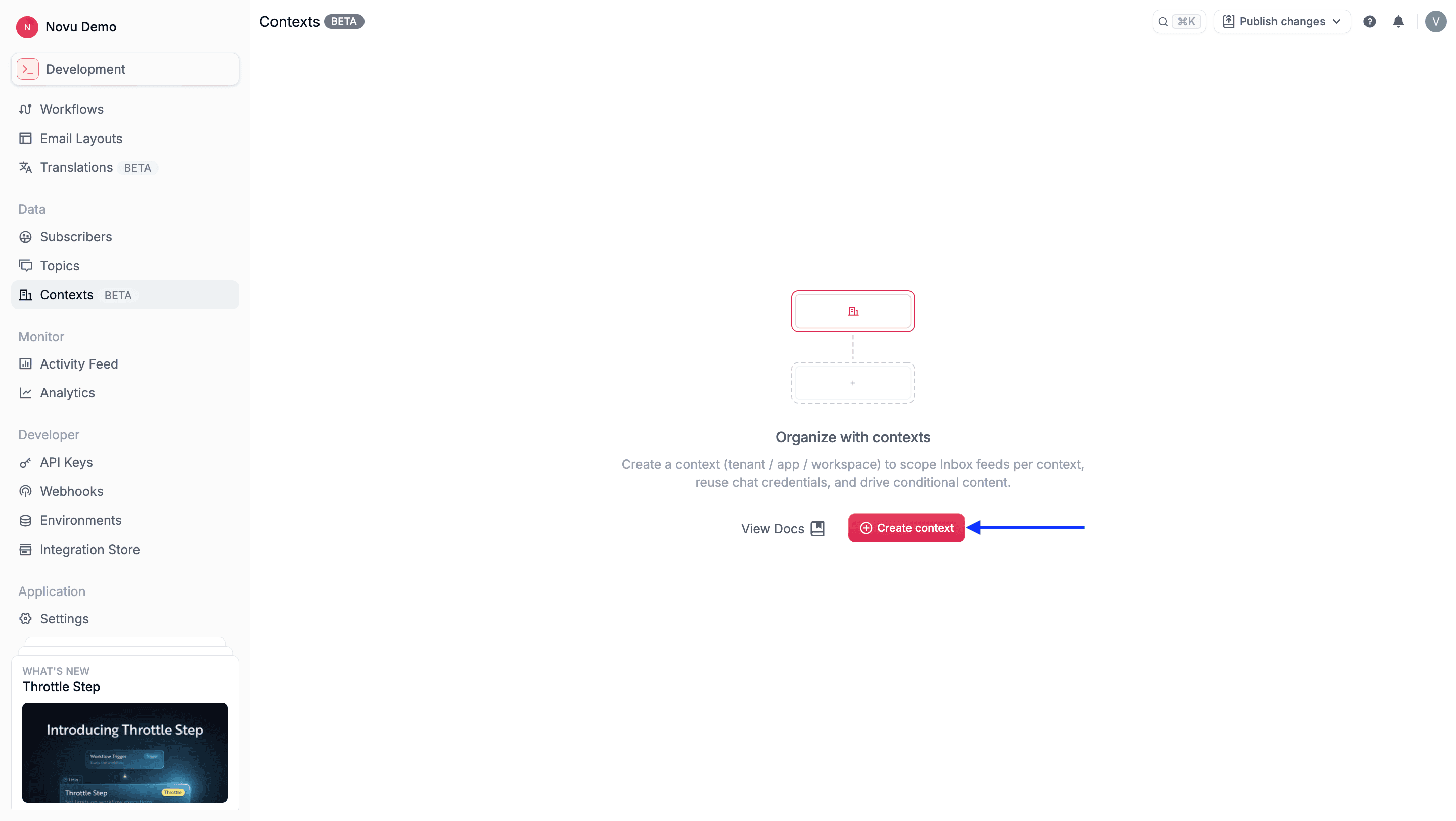
4
Complete the fields
- Identifier: A unique identifier within that type (for example, acme-corp).
- Context type: A category such as tenant, app, or region.
- Custom data (JSON): An optional JSON object that contains metadata, such as branding, plan, or region details.
5
Save the context
Review the fields, then click Create context to save.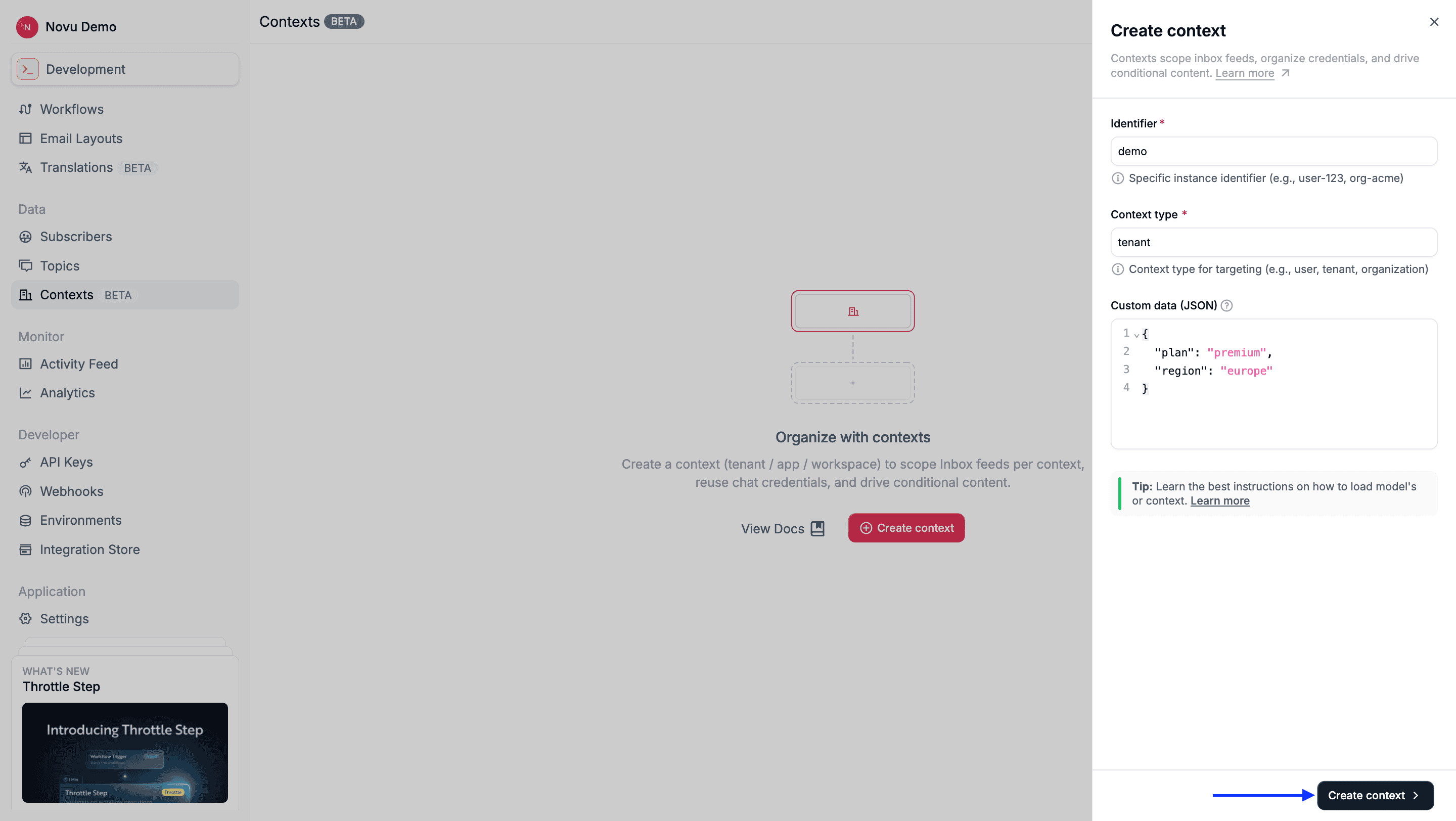
Create a context via API
Novu provides an API to create a context. If a context with the sametype:id combination already exists, then the request will fail.
- Node.js
- Python
- Go
- PHP
- .NET
- Java
- cURL
Create a context via API (Just-in-time)
Contexts can also be created automatically when you trigger a workflow that includes a new context object. If the specifiedtype:id doesn’t exist, then Novu automatically creates it before running the workflow.
- Node.js
- Python
- Go
- PHP
- .NET
- Java
- cURL
Update a context
You can update a context’s data payload at any time. The contexttype and id remain immutable. However, to change an existing context’s data, you must explicitly update it through the dashboard or API.
Update a context via dashboard
1
Log in to the Novu dashboard
Open the Novu Dashboard.
2
Open Contexts
In the Novu dashboard sidebar, click Contexts.
3
Select the context
4
Modify the data object
Edit the JSON payload for this context in the editor.
5
Save changes
Your updates apply immediately to future workflow triggers.
Update a context via API
Novu provides an API to update an existing context. Thedata object is replaced entirely during updates (not merged). Include all fields you want to retain.
- Node.js
- Python
- Go
- PHP
- .NET
- Java
- cURL
Retrieve a single context
You can retrieve a context to verify its data, confirm its creation, or inspect the metadata it holds.Retrieve a context via dashboard
1
Log in to the Novu dashboard
Open the Novu Dashboard.
2
Open Contexts
In the Novu dashboard sidebar, click Contexts.
3
View context details
Click any context entry to see its details.
Retrieve a context via API
Novu provides an API to retrieve a single, specific context by providing itstype and id in the URL.
- Node.js
- Python
- Go
- PHP
- .NET
- Java
- cURL
List or search for contexts
You can list all contexts in your environment or search for specific ones by context type or ID.List or search for contexts via dashboard
1
Log in to the Novu dashboard
Open the Novu Dashboard.
2
Open Contexts
In the Novu dashboard sidebar, click Contexts.
3
Search contexts
Use the search bar to filter by context type or ID.
List or search for contexts via API
Novu provides an API that lists or searches available contexts. Use pagination and search parameters to retrieve subsets efficiently.- Node.js
- Python
- Go
- PHP
- .NET
- Java
- cURL
Delete a context
Delete a context if it’s no longer needed. This action permanently removes the context from your Novu environment.Delete a context via dashboard
1
Log in to the Novu dashboard
Open the Novu Dashboard.
2
Open Contexts
In the Novu dashboard sidebar, click Contexts.
3
Select the context to remove
Click the context or the … icon on the row you want to remove.
4
Confirm deletion
A confirmation menu will appear.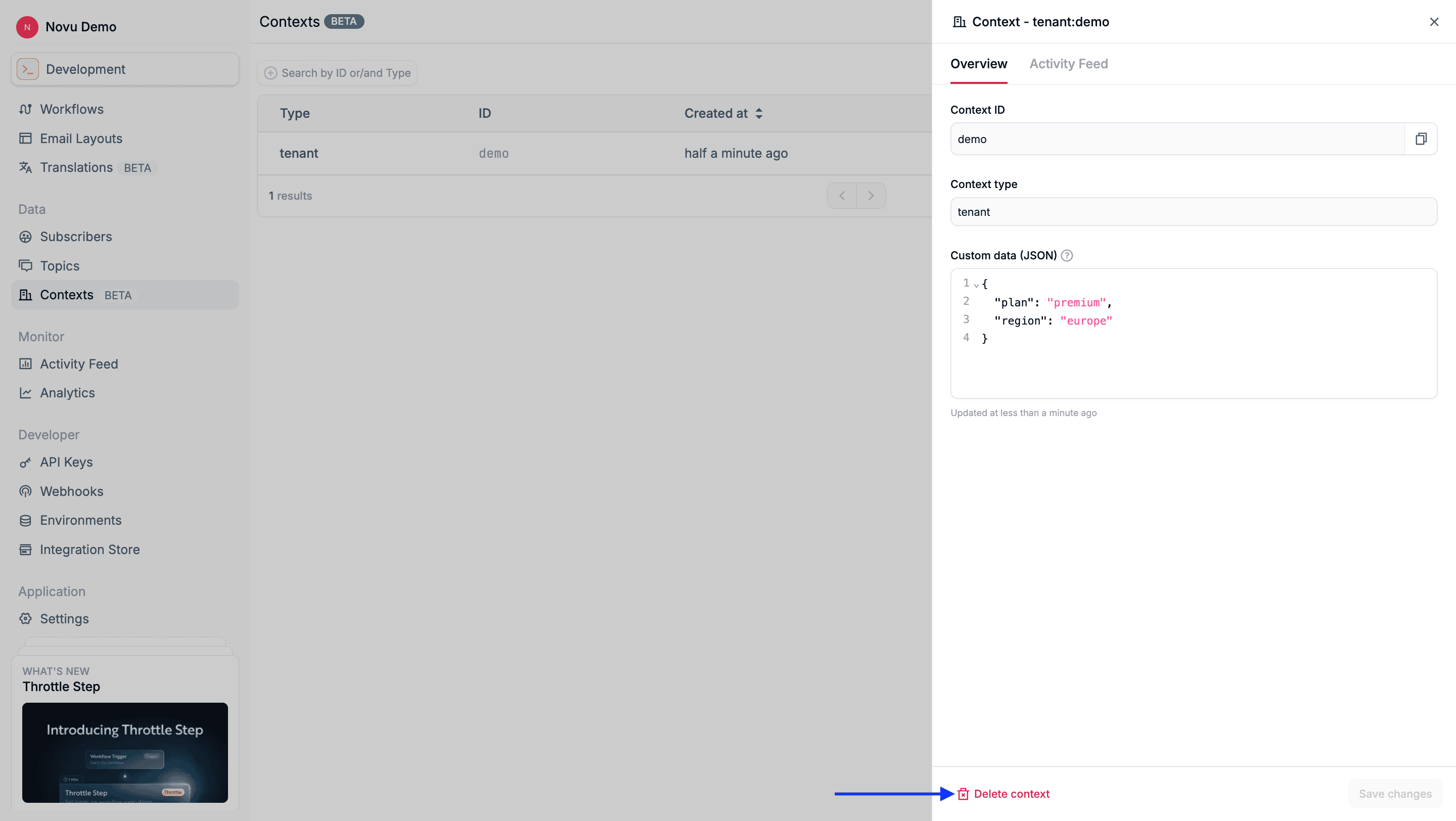
5
Delete the context
Select Delete context to confirm removal.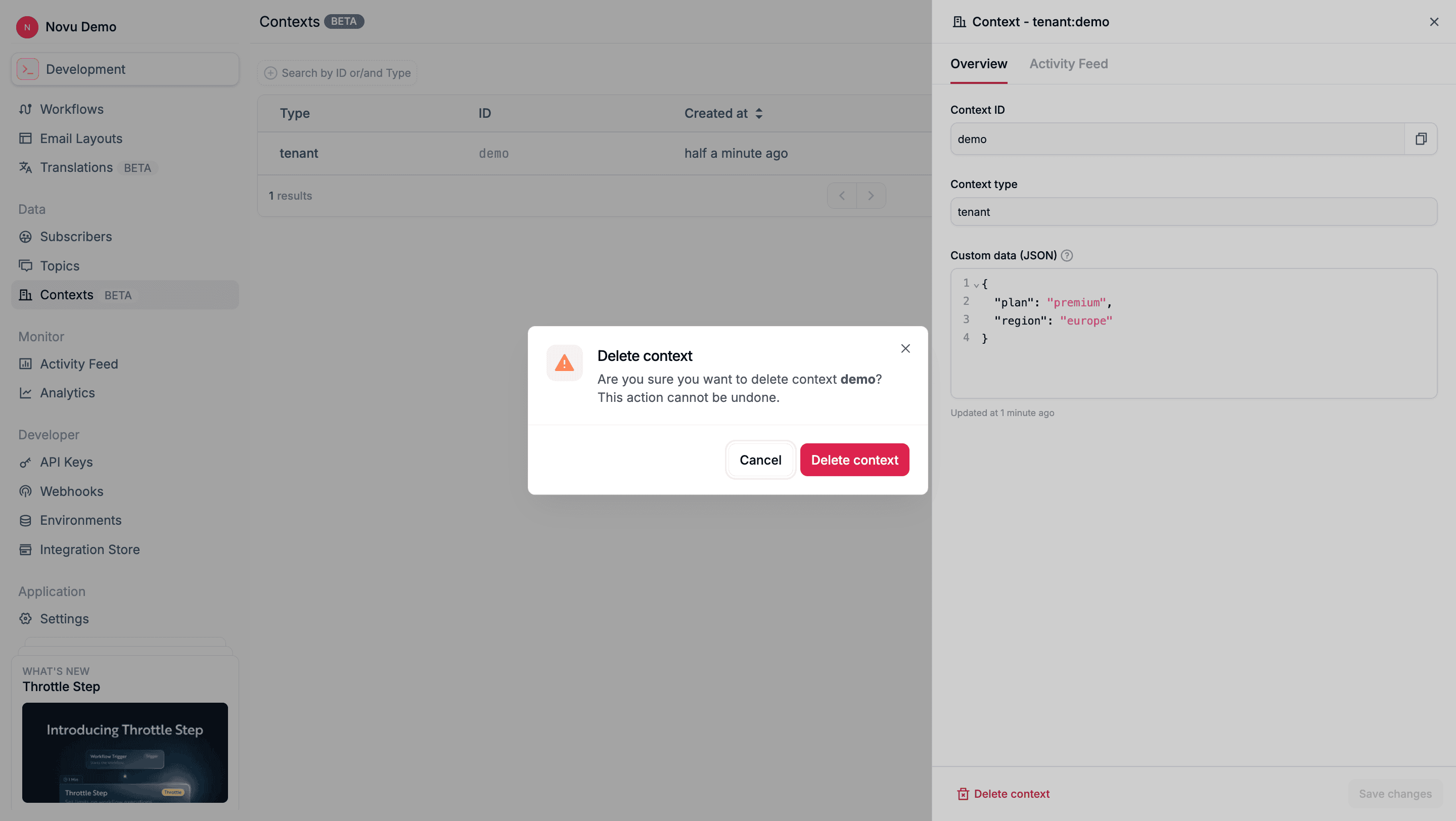
Delete a context via API
Novu provides an API that you can use to delete a context. Once deleted, the context will no longer be available for use in new workflow executions.- Node.js
- Python
- Go
- PHP
- .NET
- Java
- cURL