

Prerequisites
- Access to Azure Portal with App Registration permissions.
- Access to Microsoft Teams Developer Portal
- Administrator privileges for granting API permissions
- Access to Novu dashboard
Azure and Teams configuration
Before you can configure Novu, you must create the infrastructure that hosts your bot. This involves two distinct portals:- Azure portal: To create the identity (App Registration) and infrastructure (Bot Service).
- Teams Developer Portal: To create the app package that your customers can install.
Create the app identity (Azure AD)
First, create a multi-tenant identity for your bot.Log in to Azure Portal
Open Microsoft Entra ID
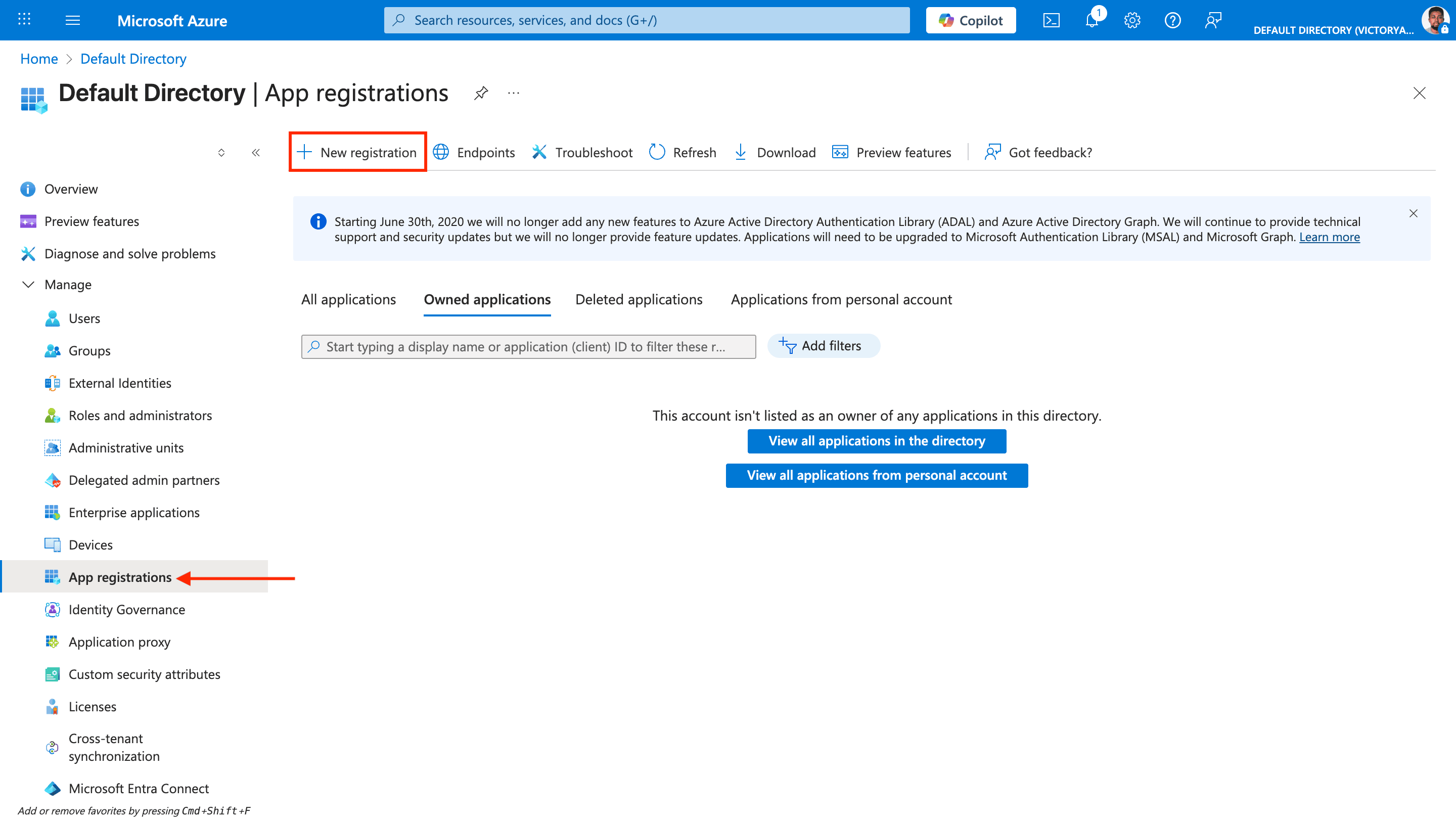
Open App registrations
Create a new registration
Fill in the form
- Name: Enter any name of your choice.
- Supported account types: Select Accounts in any organizational directory (Any Microsoft Entra ID directory - Multitenant).
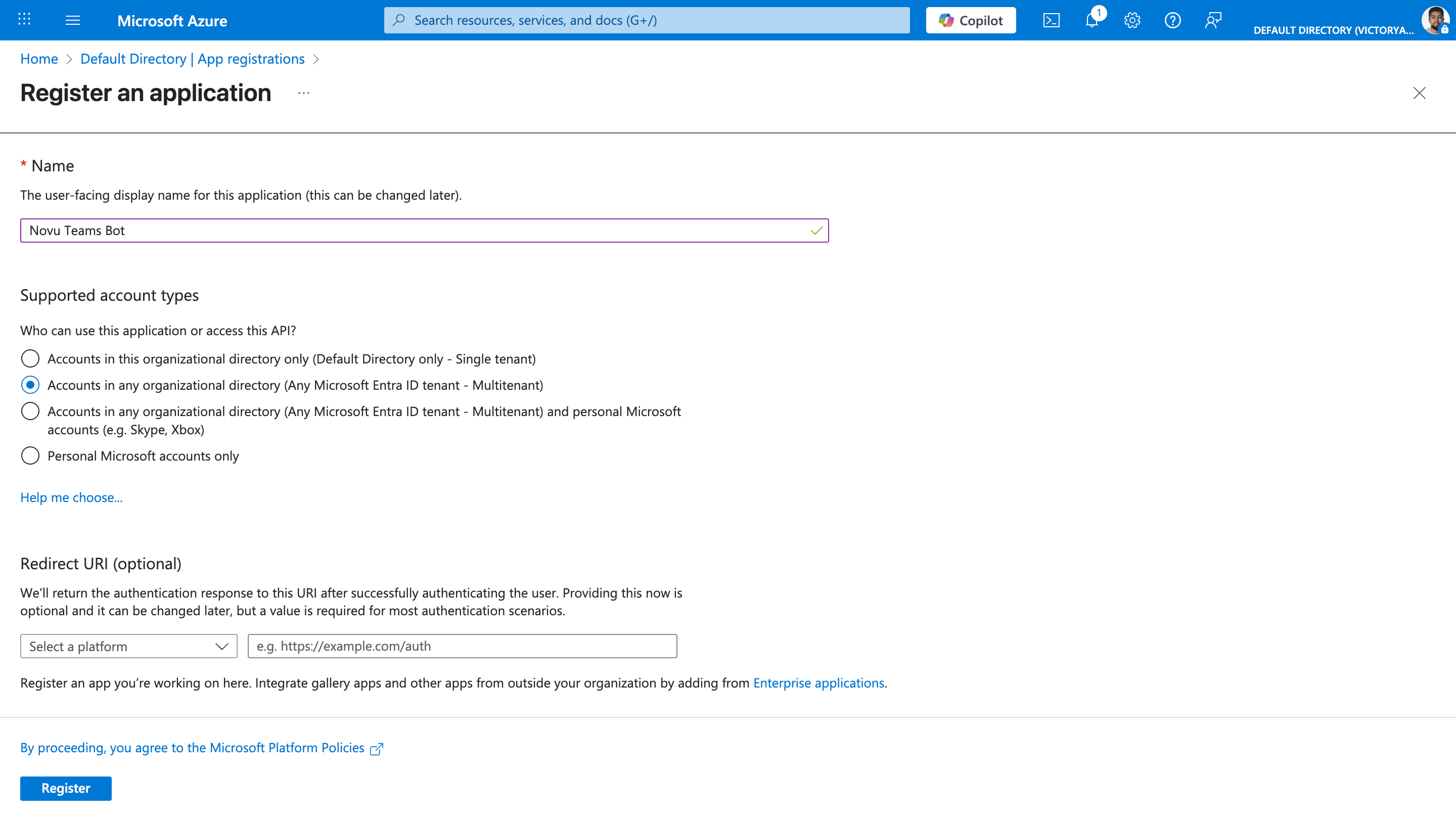
Register the app
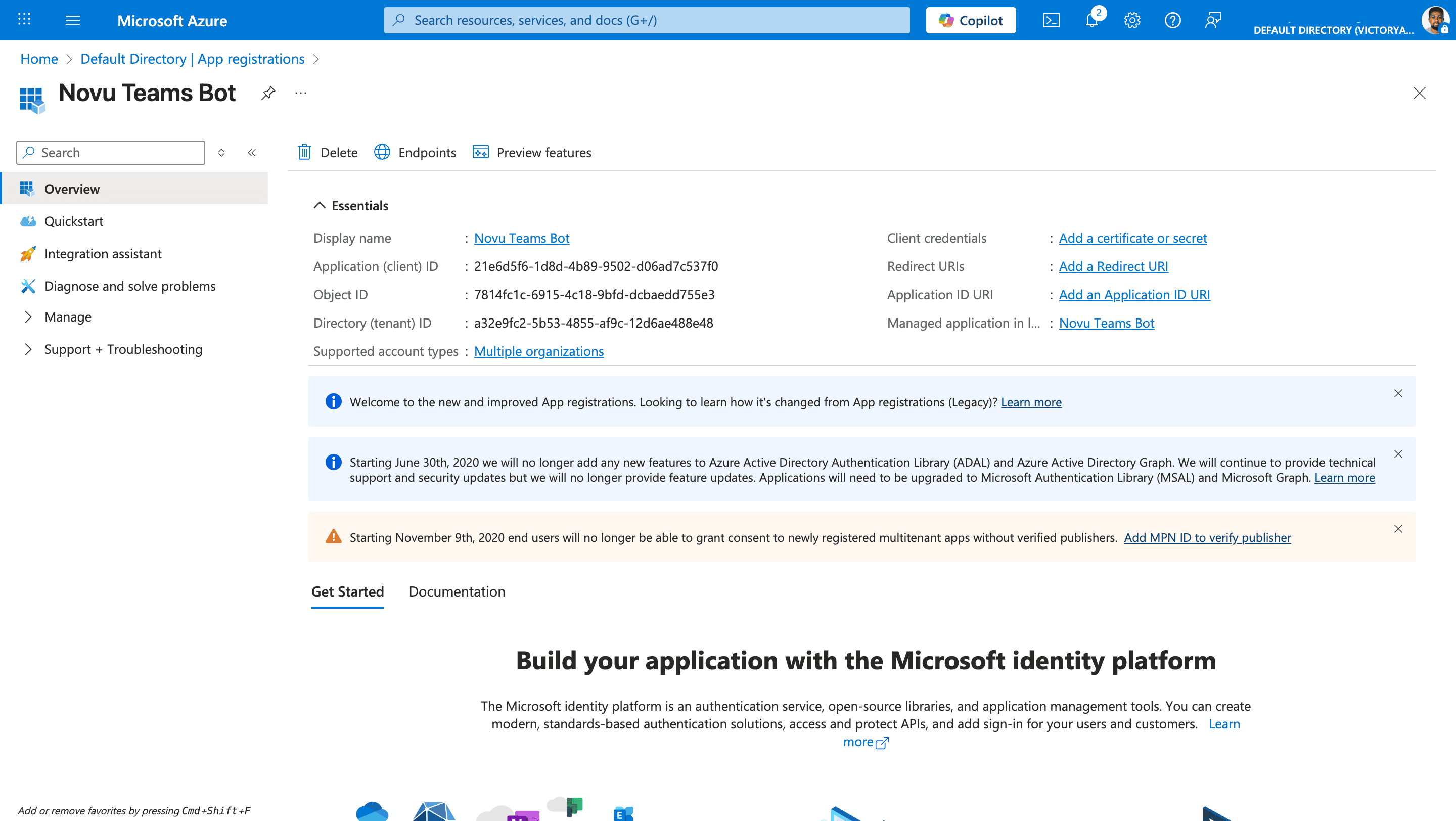
Note the IDs
Configure client secret
Open Certificates & secrets
Create a client secret
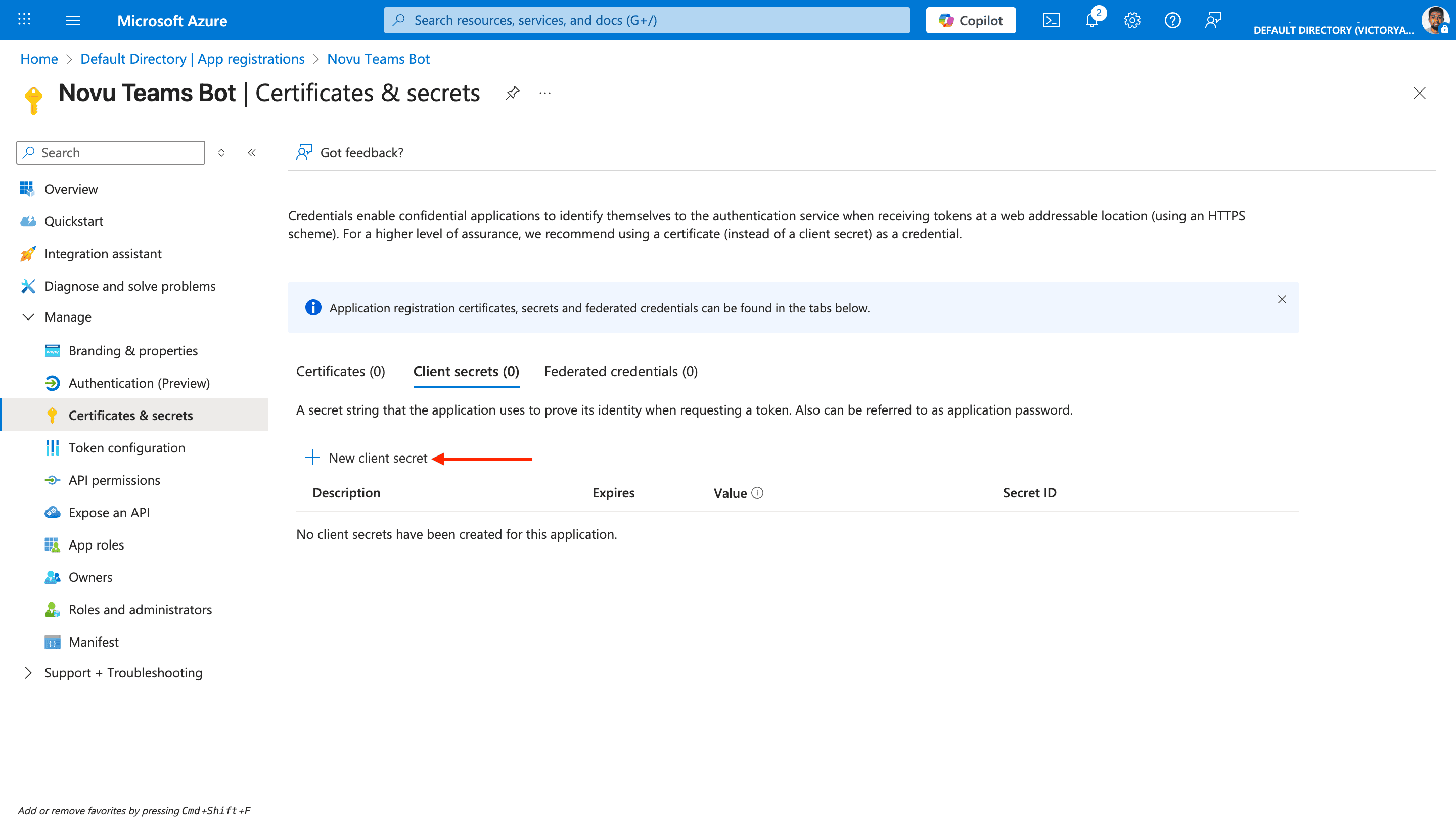
Add a description
Set expiry date
Add the secret
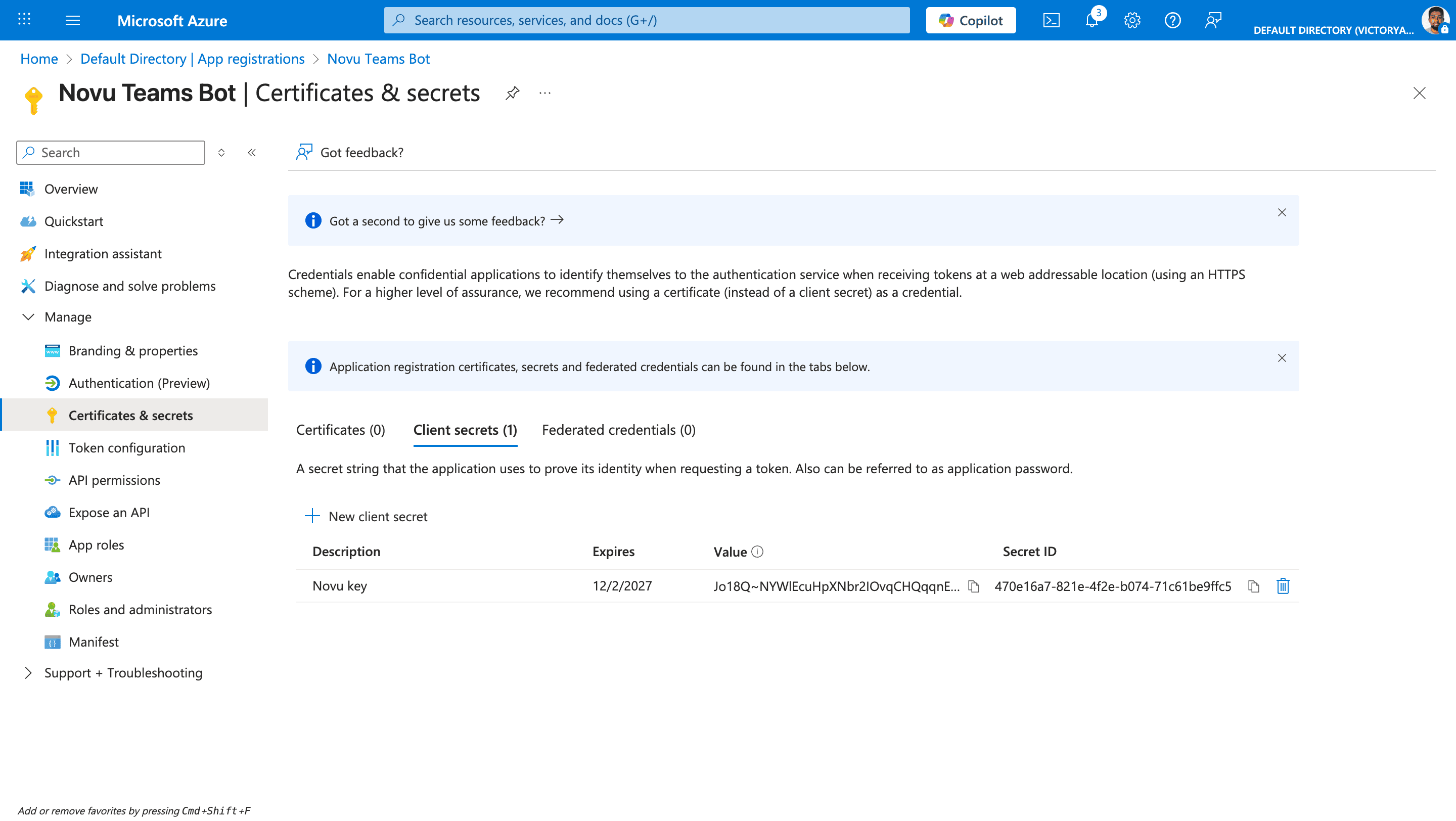
Copy the secret value
BOT_APP_SECRET, and you’ll paste it into Novu. You can view the secret only once right after you create it, so save it before you leave the page.Add Novu’s redirect URI
When a tenant administrator accepts admin consent, Microsoft redirects the browser to Novu at this URL. Register it in Azure on your app registration during setup — before any organization connects Teams. This is not the optional Redirect URL on the Novu integration. That Novu field only controls where the administrator is sent in your application after Novu finishes processing the callback.Open Authentication
Add redirect URI
Select Web platform
Set the redirect URI
- US region
- EU region
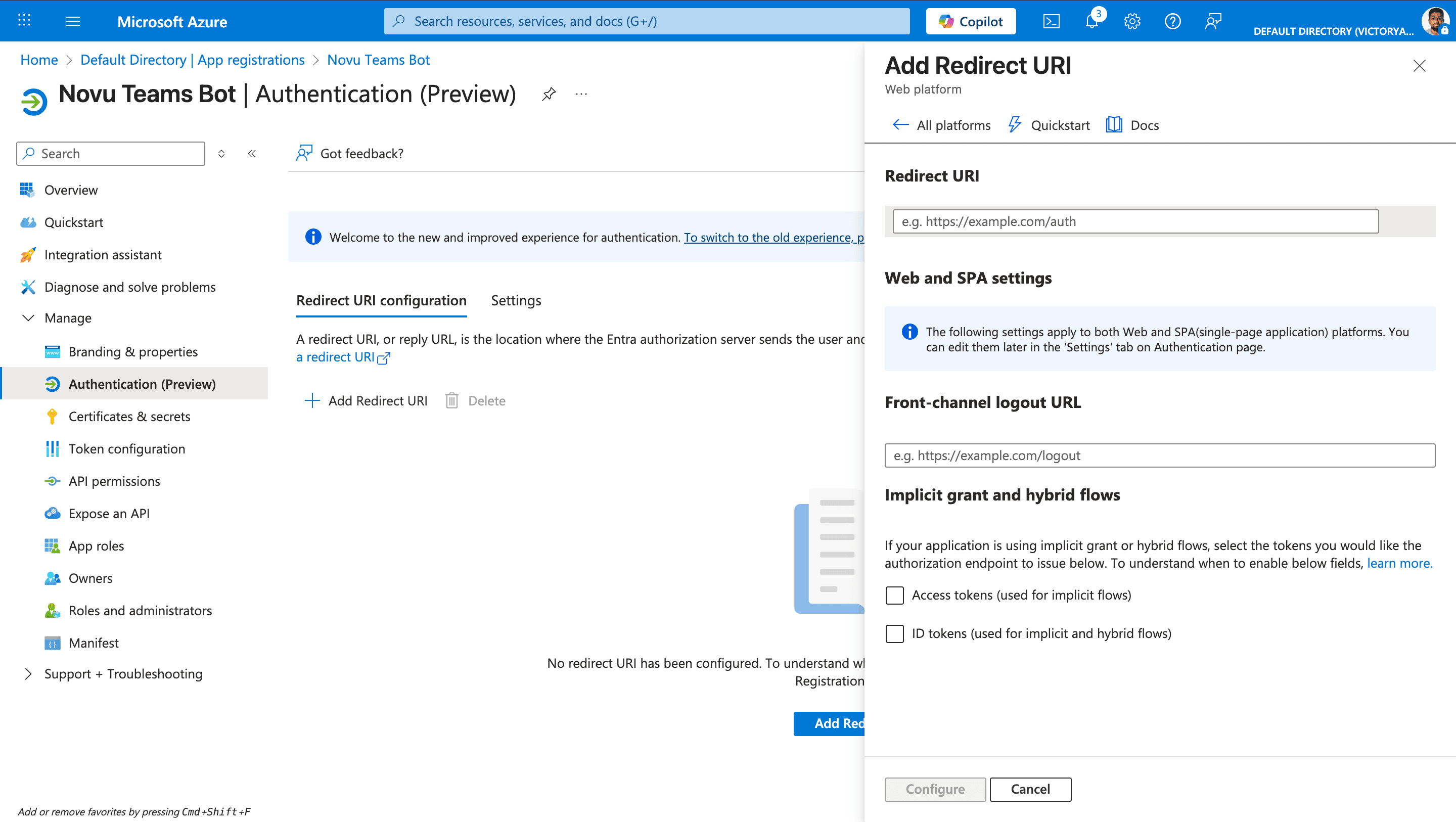
Configure
Add Microsoft Graph app permissions
These permissions let your app list teams and channels and decide where to send messages.Open API permissions
Add a permission
Select Microsoft Graph
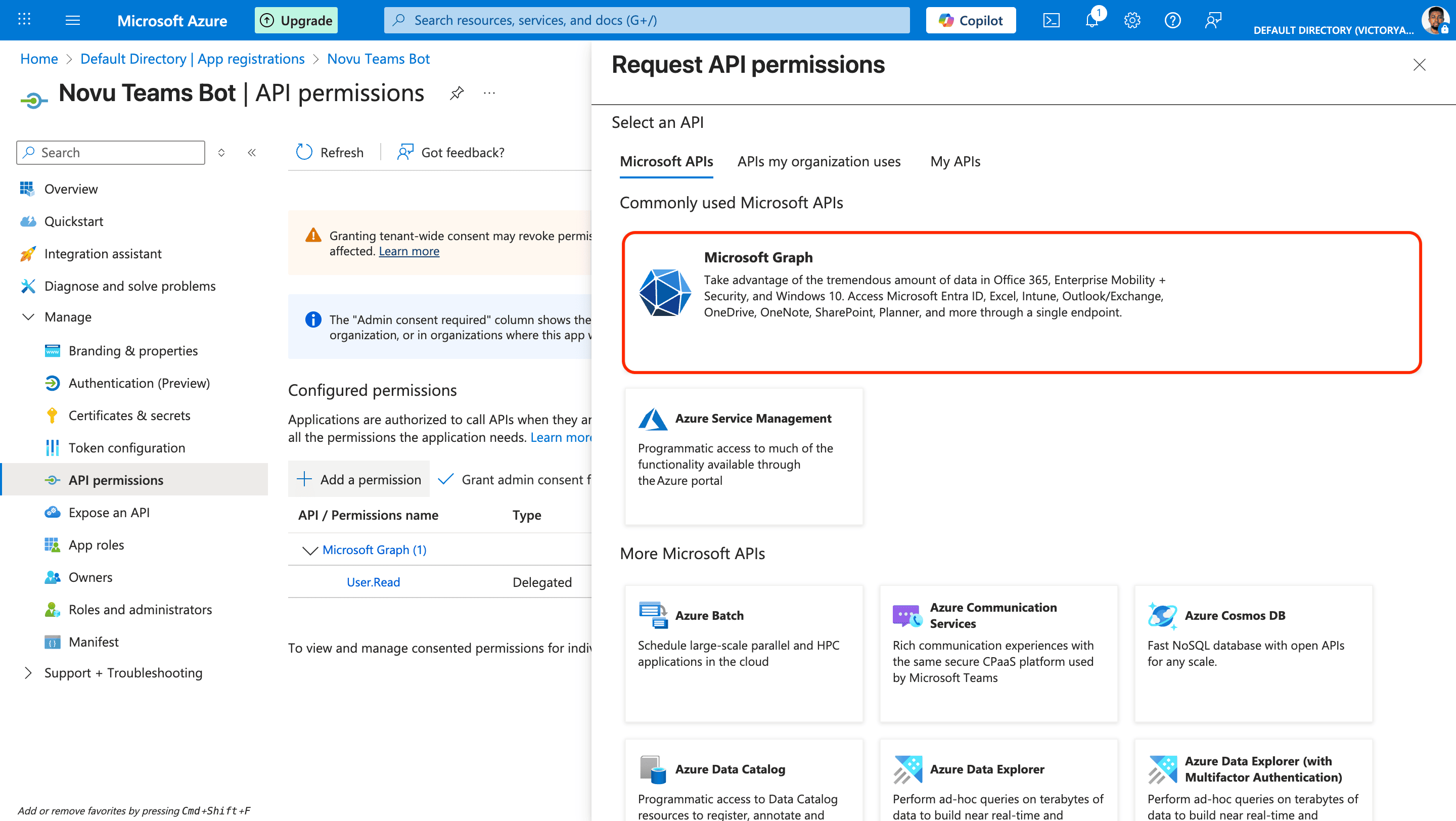
Select Application permissions
Add required permissions
Team.ReadBasic.All— list teams in a connected tenantChannel.ReadBasic.All— list channels in a teamAppCatalog.Read.All— resolve your Teams app in the org catalogTeamsAppInstallation.ReadWriteSelfForTeam.All(optional) — programmatically install the app into a teamTeamsAppInstallation.ReadWriteSelfForUser.All(required only for OAuth DM linking) — install the app for a user during the link-user flow
Confirm permissions
User.Read
openid and profile during the link-user OAuth flow; Azure includes these automatically for sign-in. Application permissions (above) cover tenant connect and channel messaging. Delegated User.Read is only needed for the separate link-user flow.
Grant admin consent in your home tenant
Create an Azure Bot resource
Now you register your bot with the Azure AI Bot Service and link it to the app registration that you just created.Create a resource
Search for Azure Bot
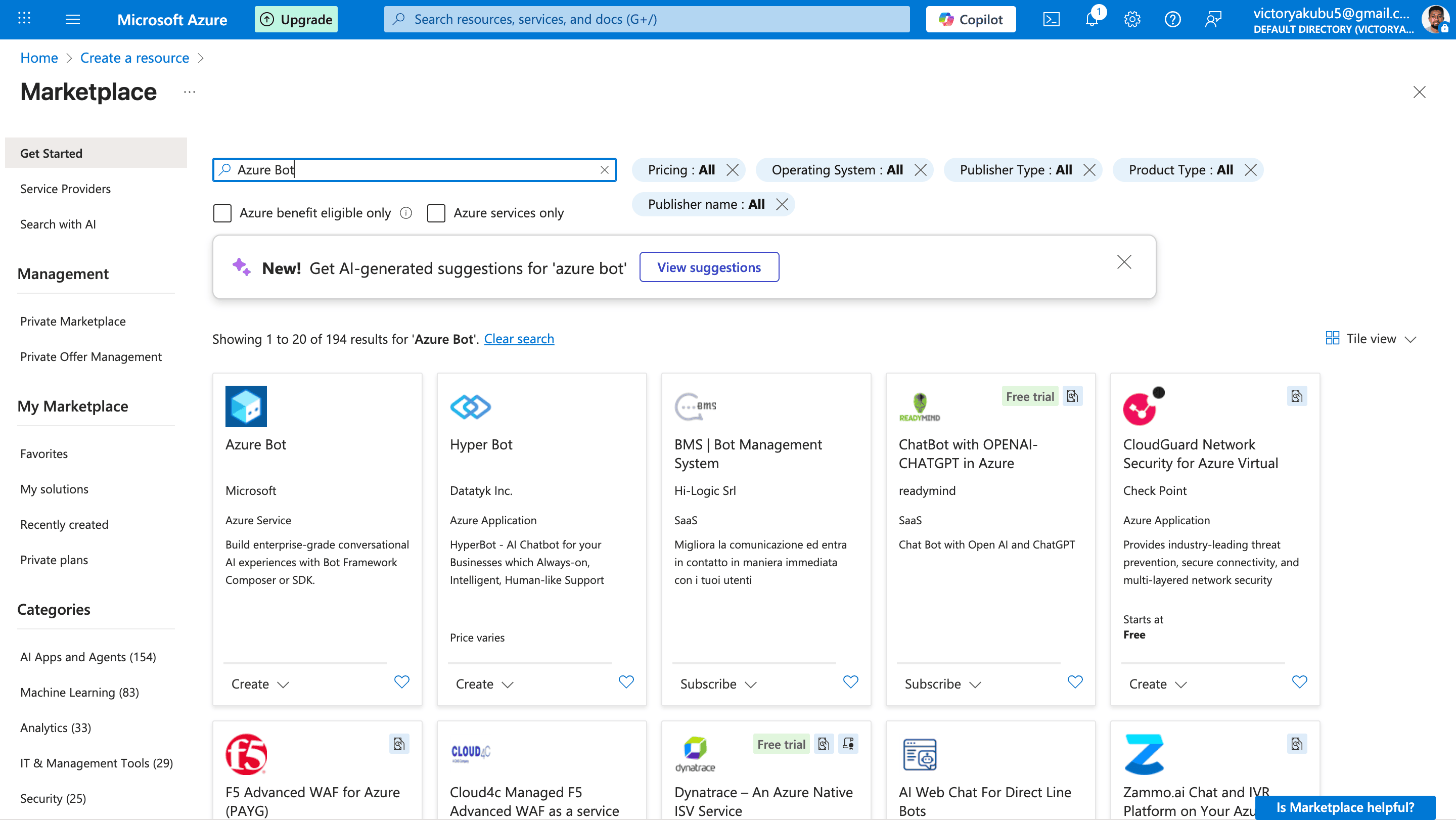
Start creation
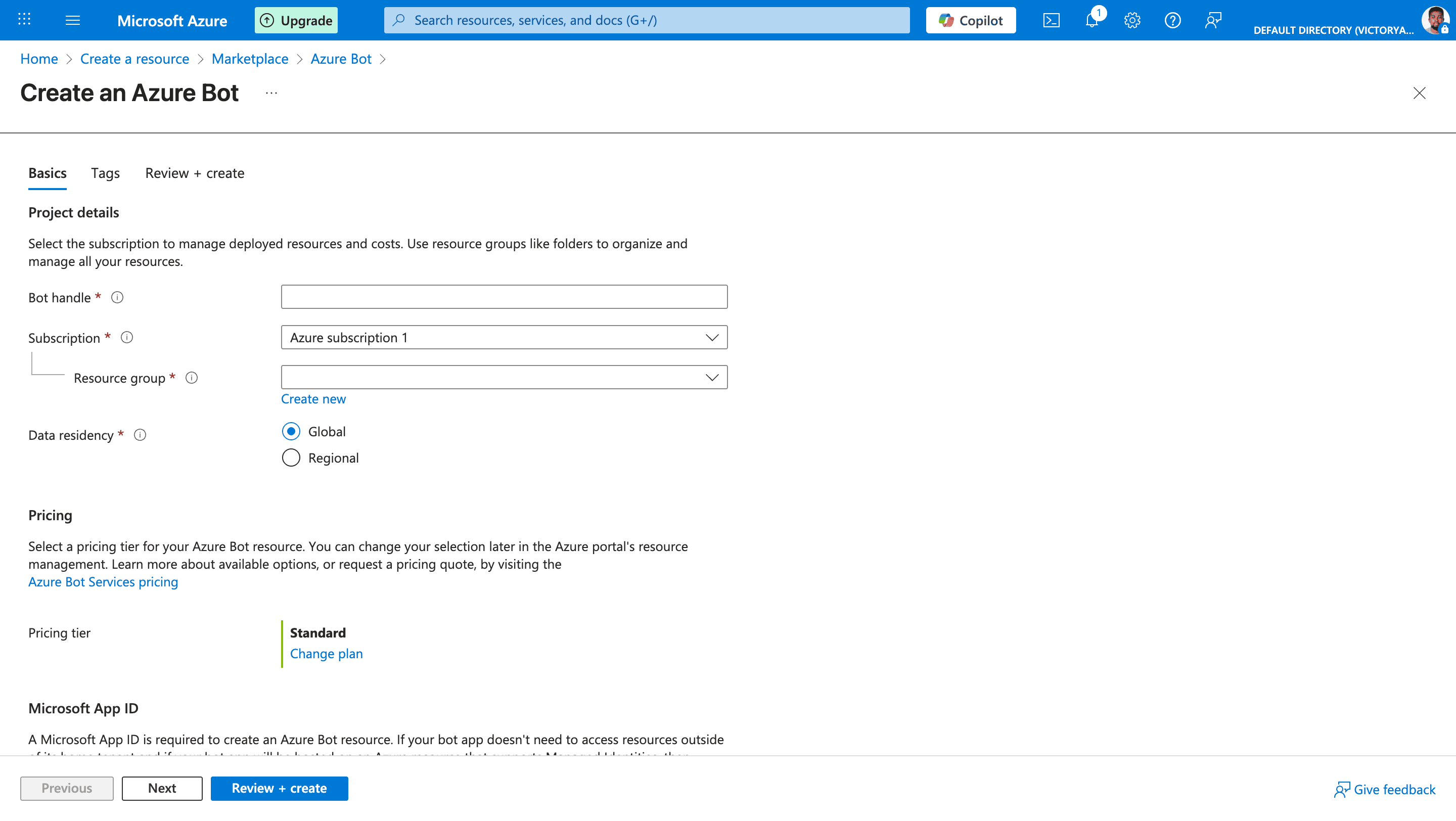
Fill in the basics
- Bot handle: The unique display name in Azure.
- Subscription: Select the Azure subscription.
- Resource group: A collection of resources that share the same lifecycle, permissions, and policies, you can either select or create one.
- Data residency: Specify an option for data residency, either global or regional.
Configure Microsoft App ID
- Type of app: Select Single-tenant app registration.
- Creation type: Choose “Use existing app registration” and use app IDs you created earlier:
- App ID: Replace with the Application (client) ID.
- App tenant ID: Replace with the Directory (tenant) ID.
Review and create
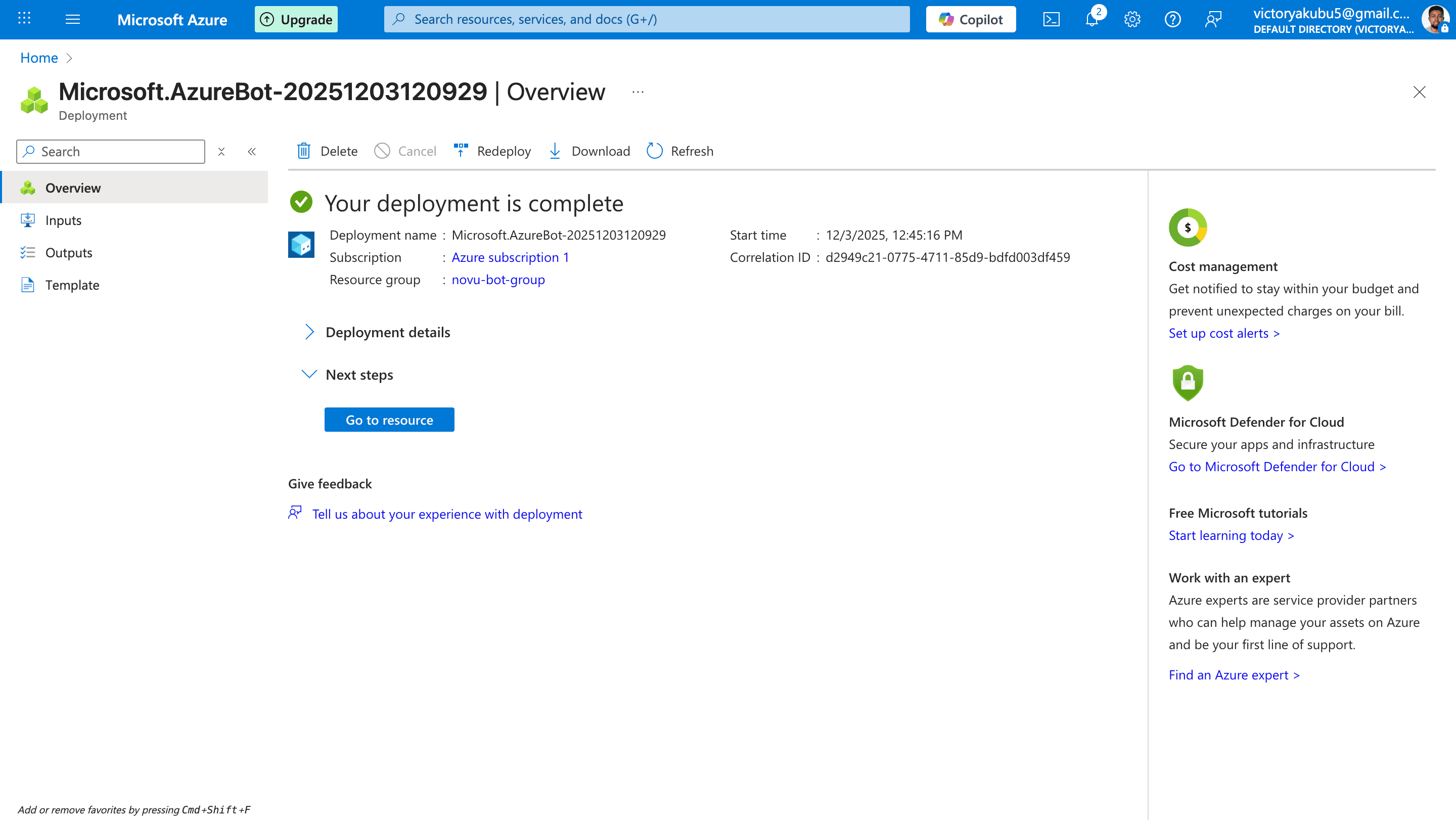
Create the bot
Enable the Microsoft Teams channel
This connects your bot resource to Teams and lets your Teams app install cleanly.Go to resource
Open Settings
Open Channels
Select Microsoft Teams
Accept terms of service
Choose environment
Apply changes
Create a Teams app
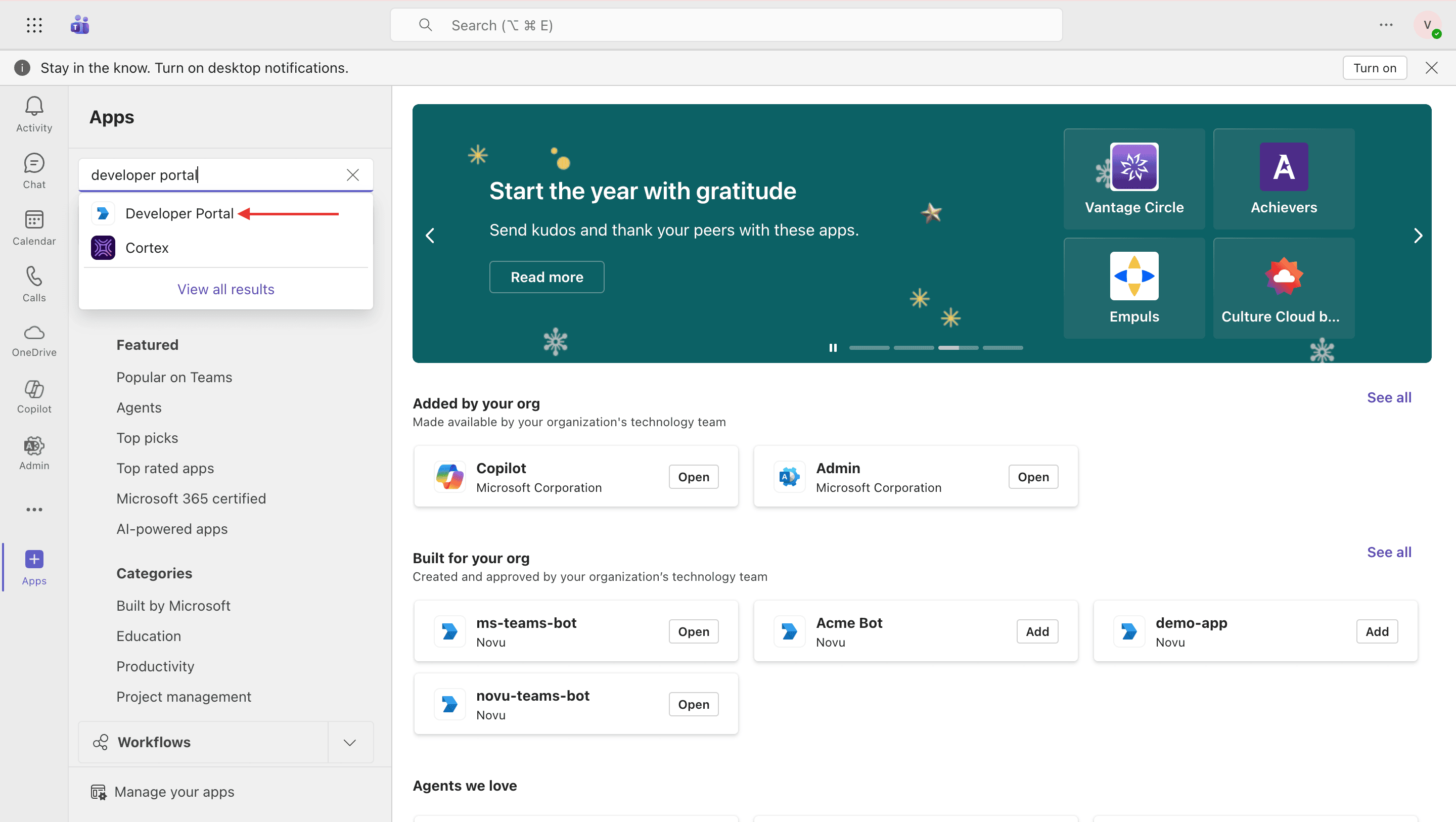
Now you create the Teams “wrapper” around your app registration and bot.Open Teams client
Open Developer Portal
Create a new app
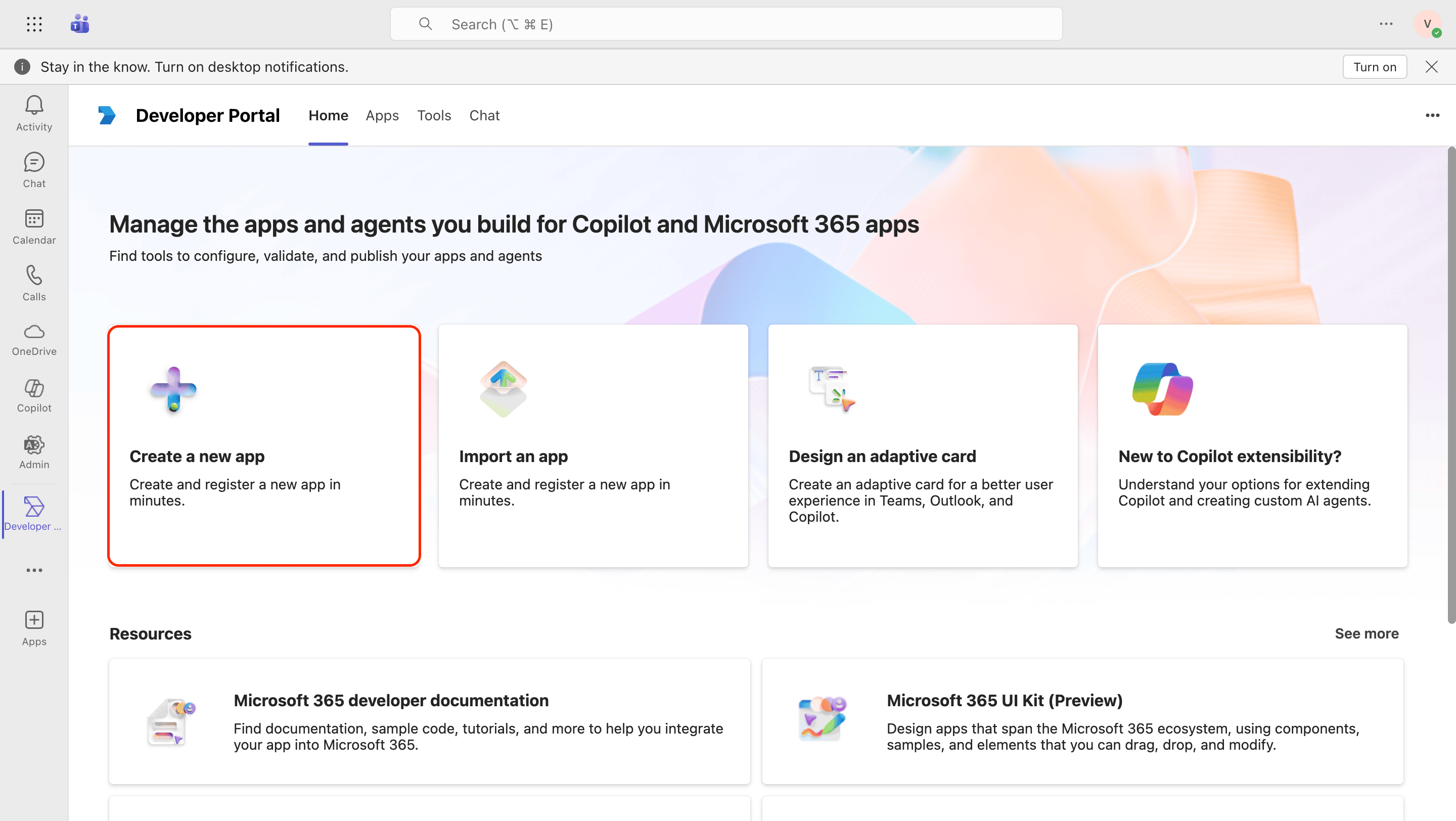
Enter app name
Fill in Basic information
Open App features
Select Bot
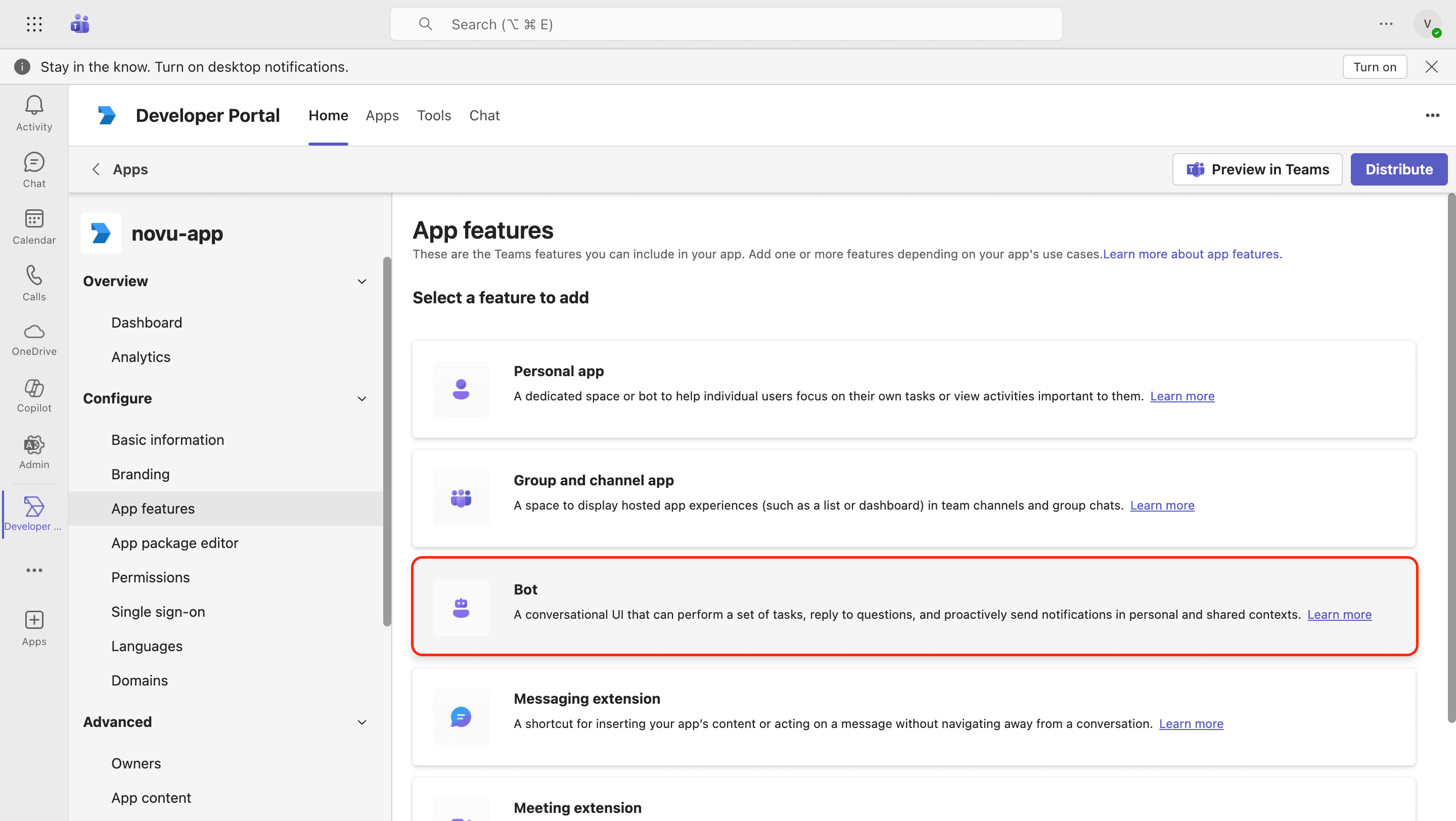
Enter bot ID
Configure bot capabilities
Enable scopes
- Team
- Personal
- Group chat
Add supportsChannelFeatures (Team scope)
supportsChannelFeatures property to your app manifest. Without it, uploading or installing the app fails with:Applications with manifest version 1.25 or higher that support the ‘team’ scope must include the ‘supportsChannelFeatures’ property.In the Developer Portal, go to Configure → App package editor → manifest.json, and add
"supportsChannelFeatures": "tier1" at the root level of the manifest. tier1 is the only supported value.Save the app
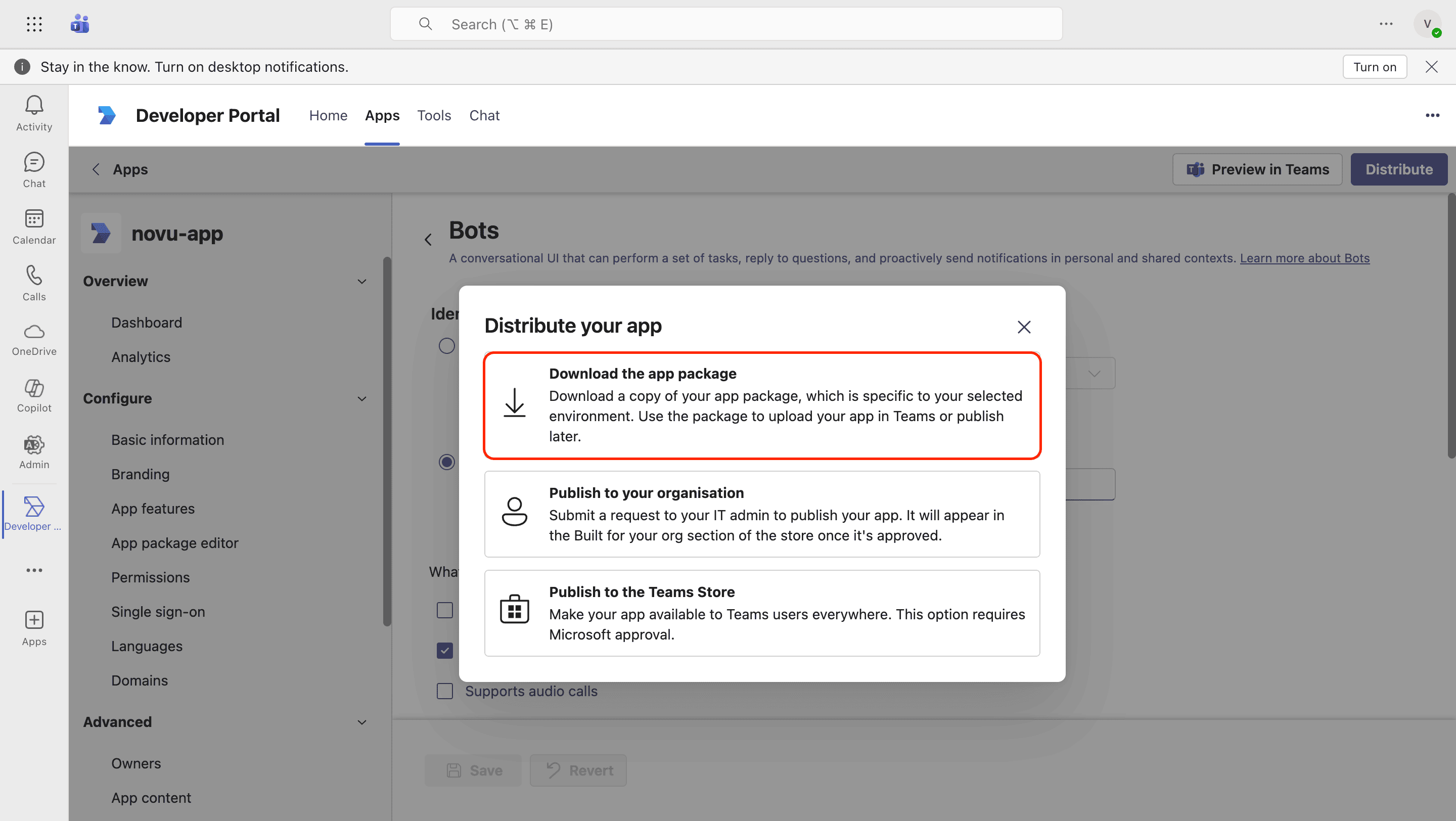
Download the app package
Upload your app
Next, you must install the app into a specific Team or for a specific User. Follow the steps in the Microsoft Teams documentation to learn how to upload the just downloaded app package and also how to add the app to a specific location.Configure the Teams (Bot) integration in Novu
Now that you’ve configured your Azure Bot, provide Novu with the credentials to integrate it.Log in to the Novu dashboard
Open Integrations Store
Connect a provider
Select MSTeams
Enter credentials
- Client ID: Enter your
BOT_APP_ID. - Client Secret: Enter your
BOT_APP_SECRET. - App Tenant ID: Enter your
APP_TENANT_ID. This value identifies the tenant where you registered the app. - Redirect URL (Optional): Where the tenant administrator is sent in your application after Novu processes the OAuth callback. This is not the Azure redirect URI — see Add Novu’s redirect URI.
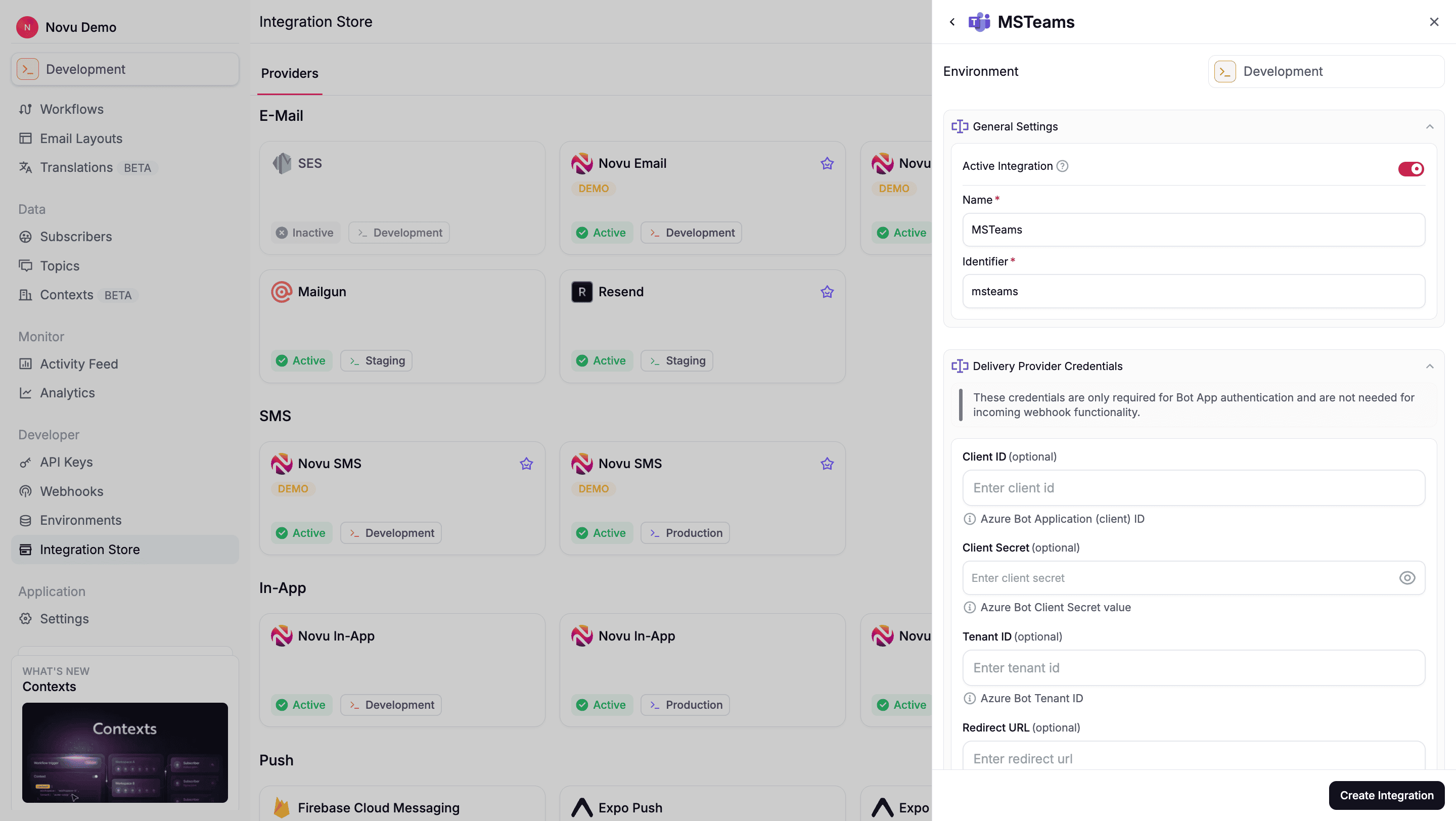
Create the integration
Let organizations connect their Microsoft 365 tenant
Each organization you notify has its own Microsoft 365 tenant. Before you can send Teams messages on their behalf, a tenant administrator from that organization must grant your app a one-time admin consent. This authorizes your bot in their tenant using application permissions (app-only / client credentials).Generate a Connect Teams URL
Call this from your backend when someone starts the connect flow in your product (for example, when a tenant administrator clicks Connect Microsoft Teams).- Node.js
- Python
- Go
- PHP
- .NET
- Java
- cURL
POST /v1/integrations/channel-connections/oauth with the same body if you are not using the TypeScript SDK. Authenticate with your Novu secret key.
Novu returns a URL pointing to Microsoft’s administrator consent endpoint (login.microsoftonline.com/organizations/v2.0/adminconsent). It includes your Client ID, redirect URI, and the https://graph.microsoft.com/.default scope.
Provide either subscriberId or context to scope the channel connection in Novu. If you pass subscriberId, that subscriber must already exist in your Novu environment.
For tenant-wide admin consent, prefer context and set autoLinkUser: false (or omit autoLinkUser — the API treats omitted as false). Only when autoLinkUser is explicitly true and subscriberId is set does Novu chain a second OAuth flow after admin consent to link that subscriber for DMs.
@novu/react MsTeamsConnectButton defaults autoLinkUser to true in subscriber mode. That is intended for in-app end-user connect flows. For server-side tenant admin consent (Java, REST, or @novu/api), pass autoLinkUser: false explicitly.Show it in your UI
Open the URL in a new tab or window when the tenant administrator is ready to consent:What the tenant administrator does
The tenant administrator is someone at the connecting organization (not a Novu dashboard user). They grant consent in Microsoft — they do not need a Novu account.Sign in to your product
Click Connect Microsoft Teams
Review consent page
Accept consent
admin_consent=True and the organization’s tenant ID. Novu stores the tenant on a channel connection and the flow is complete. You do not handle the callback yourself.
If you set an optional Redirect URL on the MS Teams integration in the Novu dashboard, the administrator is sent there after success; otherwise the consent window shows a success message and can be closed.
Install the app in Teams
Admin consent only authorizes your bot in the organization’s tenant. It does not add the bot to a specific team or chat. For the bot to send messages, someone must install the app where notifications should appear:- For channel messages: Install the app in the specific Team.
- For direct messages: Install the app for the specific user in their personal scope.
TeamsAppInstallation.ReadWriteSelfForTeam.All permission, your backend can programmatically install the app into a specific Team using the Microsoft Graph API.
Tell Novu where to send the messages
Decide where notifications should land in Teams, collect the required IDs, and register them as channel endpoints in Novu. You can choose between two destination types:- Channels: Send a message to a specific channel within a Team.
- Users: Send a direct message to a specific user.
Sending message to channels
To send a notification to a specific channel, you must discover the Team ID and Channel ID from Microsoft, and then register them in Novu.Find the Team and Channel IDs (Microsoft Graph)
You can discover these IDs using the Microsoft Graph API. This requires an App-Only Token (Client credentials) scoped to the customer’s tenant.Get a Graph access token
SUBSCRIBER_TENANT_ID represents the customer’s tenant ID, which Novu stored on the ChannelConnection object after completing the Admin Consent flow.List Teams
List channels in a Team
Register the channel endpoint (Novu)
Once you have the IDs, create anms_teams_channel endpoint in Novu. This maps a subscriber to that specific channel.
ChannelEndpoint<'ms_teams_channel'>. You can later target it from workflows via subscriberId + context.
Send a direct message to a user
To send a direct message (DM), register anms_teams_user channel endpoint for the subscriber. You can do this with OAuth or by supplying the Teams user ID manually.
Link a subscriber for direct messages
Prerequisites:- Admin consent has already connected the organization’s tenant (see above).
- The subscriber exists in Novu.
- Application permission
TeamsAppInstallation.ReadWriteSelfForUser.Alland delegatedUser.Readare configured in Azure (see Add Microsoft Graph app permissions).
autoLinkUser: true on generateConnectOAuthUrl. Use generateLinkUserOAuthUrl instead:
- Node.js
- Python
- Go
- PHP
- .NET
- Java
- cURL
POST /v1/integrations/channel-endpoints/oauth with the same body when using the REST API.
This opens a Microsoft sign-in flow with delegated scopes (openid, profile, User.Read). Novu reads the user’s identity from the token, installs the bot for that user when possible, and creates an ms_teams_user channel endpoint.
Find the user ID manually (Bot framework)
Alternatively, discover the Teams user ID yourself and register the endpoint without OAuth. Use the Bot framework API to inspect the roster of the Team where you installed the bot.Install the bot in a Team
Get a Bot Framework token
Call the roster API
id; this value represents the Teams user ID (29:...) you’ll use as userId.
Register the user endpoint (Novu)
Once you have the IDs, create the endpoint in Novu using thems_teams_user type.
ChannelEndpoint<'ms_teams_user'>. From here, any workflow that resolves to this endpoint can send a DM from your bot to that user.
Workflows for Teams (Webhook-style)
If you don’t need a full Bot identity or Direct Message capabilities, then you can support a simplified, channel-only integration using Workflows for Microsoft Teams. This approach relies on a unique Webhook URL generated by the Teams client. It requires no Azure app registration and no administrator consent.User generates the webhook URL (Teams client)
The setup begins inside the Microsoft Teams app. Instruct your users to follow these steps:Open Workflows
Create a new flow
Choose a trigger
Add a post message action
Save the workflow
Copy the webhook URL
Register the webhook endpoint (Novu)
Unlike the Bot integration, you don’t usems_teams_channel here. Instead, you treat this as a generic webhook endpoint. Your app should provide a form where the user can paste the URL they generated in the previous step.
- Node.js
- Python
- Go
- PHP
- .NET
- Java
- cURL
Sending the notification
When you trigger a workflow that targets this subscriber:Novu sends HTTP POST
Workflows receives payload
Workflow posts message
Using Microsoft Teams with agents
Microsoft Teams is a supported agent provider. Connect your Teams bot to an agent so users can message the bot and get replies in the same chat — without building Bot Framework webhook handling yourself.Build agents on Teams
What you get
When Teams is connected to an agent:- Users message your bot in Teams and your agent responds in the same chat
- Conversations appear in the dashboard under Agent Conversations
- Supported content includes text, markdown, files, and interactive cards