

This feature is currently in public beta, please contact us at support@novu.co to enable it for your organization.
Check out the agents documentation for more information on how to build agents using Slack.
Configure a Slack app
Before integrating Slack chat with Novu, you must create and configure a Slack app. The Slack app manages the OAuth permissions, bot token scopes, and redirect URLs needed for Novu to connect to your users’ workspaces securely.Create a Slack app
First, you need to create a Slack app. This provides you with the credential you need to create a Slack integration in Novu.1
Open the Slack API dashboard
Sign in at the Slack API dashboard.
2
Create an app
In Slack, click Create an App to start a new app registration.
3
Select From scratch
Choose From scratch and enter an app name and workspace.
4
Enter app name and workspace
Enter an app name of your choice in the App Name field.
Pick a Slack workspace to develop your app in.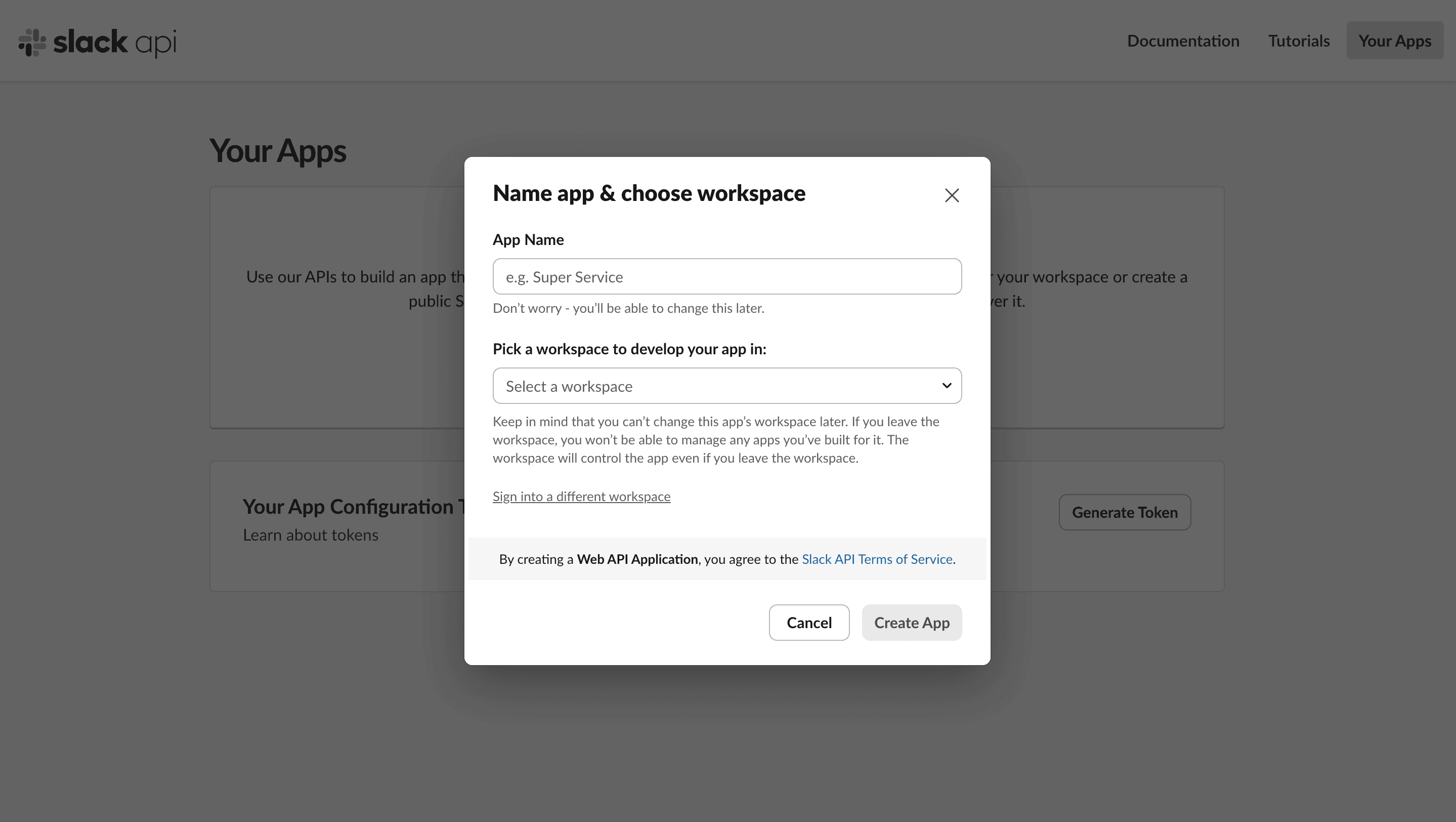
5
Create the app
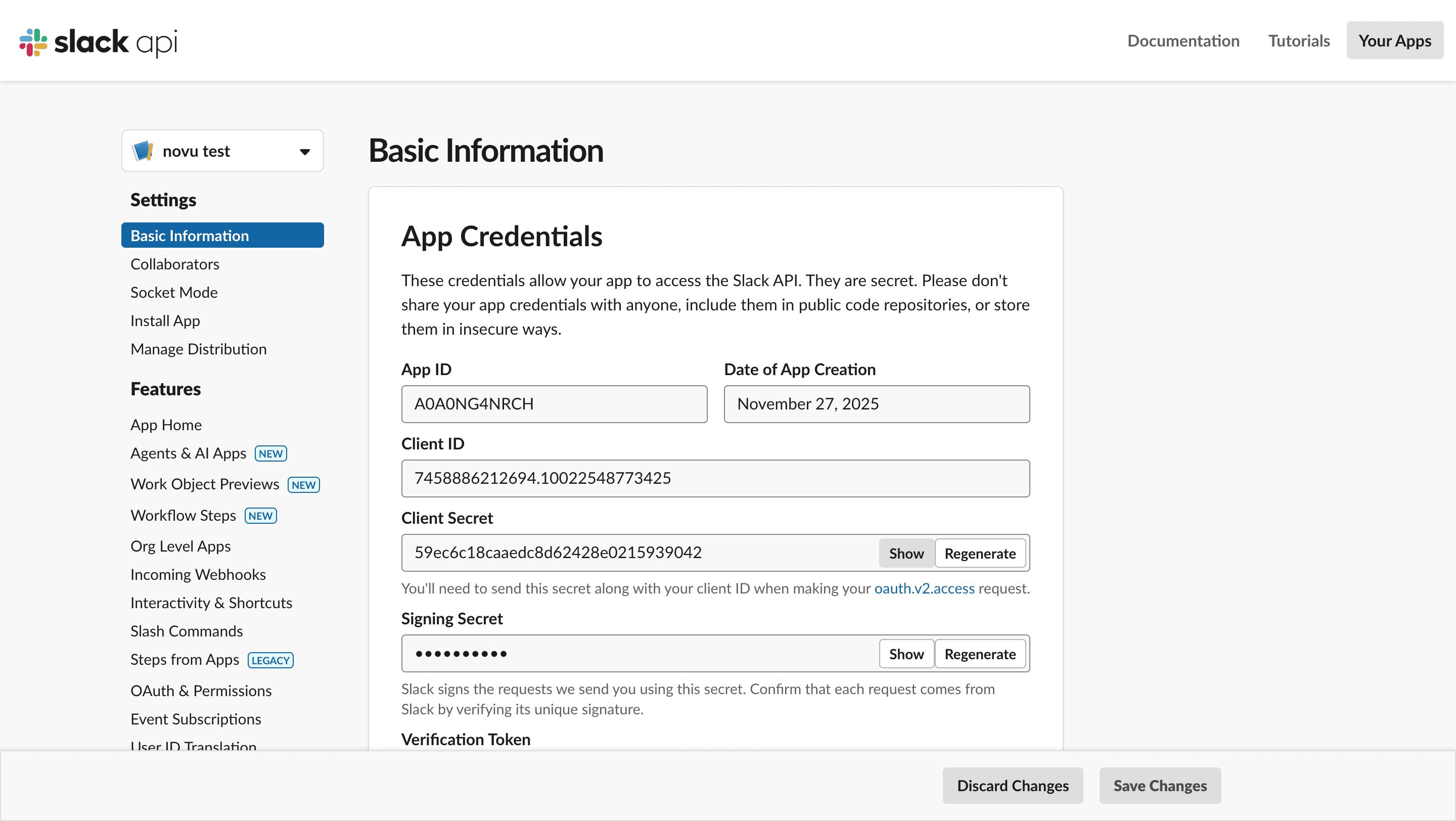
Click Create App. You’ll be directed to the Basic Application for the Slack app which contains the credentials you need for configuring Slack chat inside Novu:
- App ID
- Client ID
- Client Secret
Configure scopes (Permissions)
Your app needs permission to perform actions like sending messages or reading channel lists.1
Open OAuth & Permissions
In the sidebar, select OAuth & Permissions.
2
Open Scopes
Scroll down to the Scopes section.
3
Add an OAuth Scope
Under Bot Token Scopes, click Add an OAuth Scope.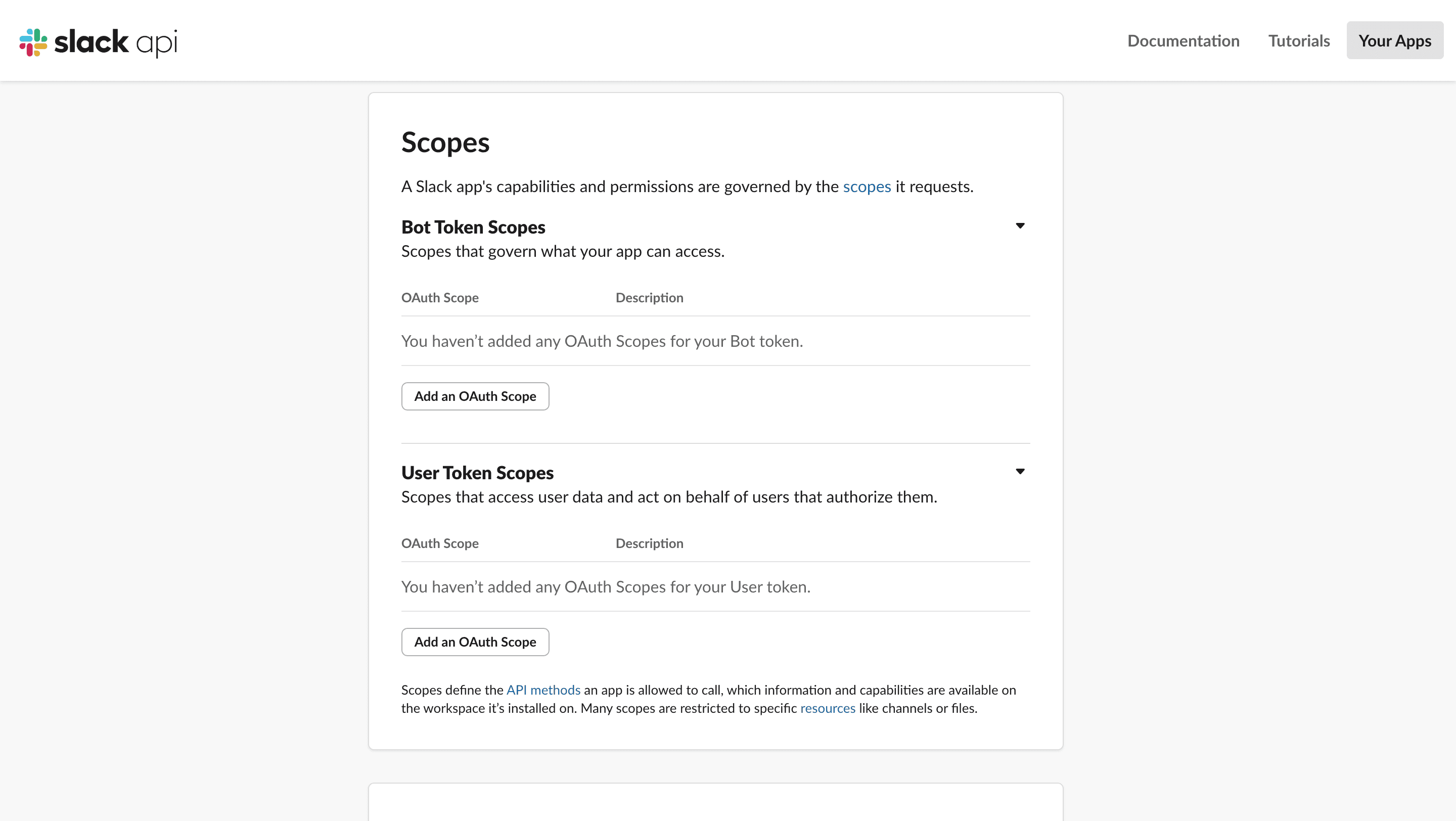
4
Add recommended scopes
chat:writechat:write.publicchannels:readgroups:readusers:readusers:read.email- (optional)
incoming-webhookif you want Slack’s built-in channel picker.
Set the redirect URL
This tells Slack where to send the user after they successfully authorize your app.1
Open OAuth & Permissions
In the sidebar, select OAuth & Permissions.
2
Open Redirect URLs
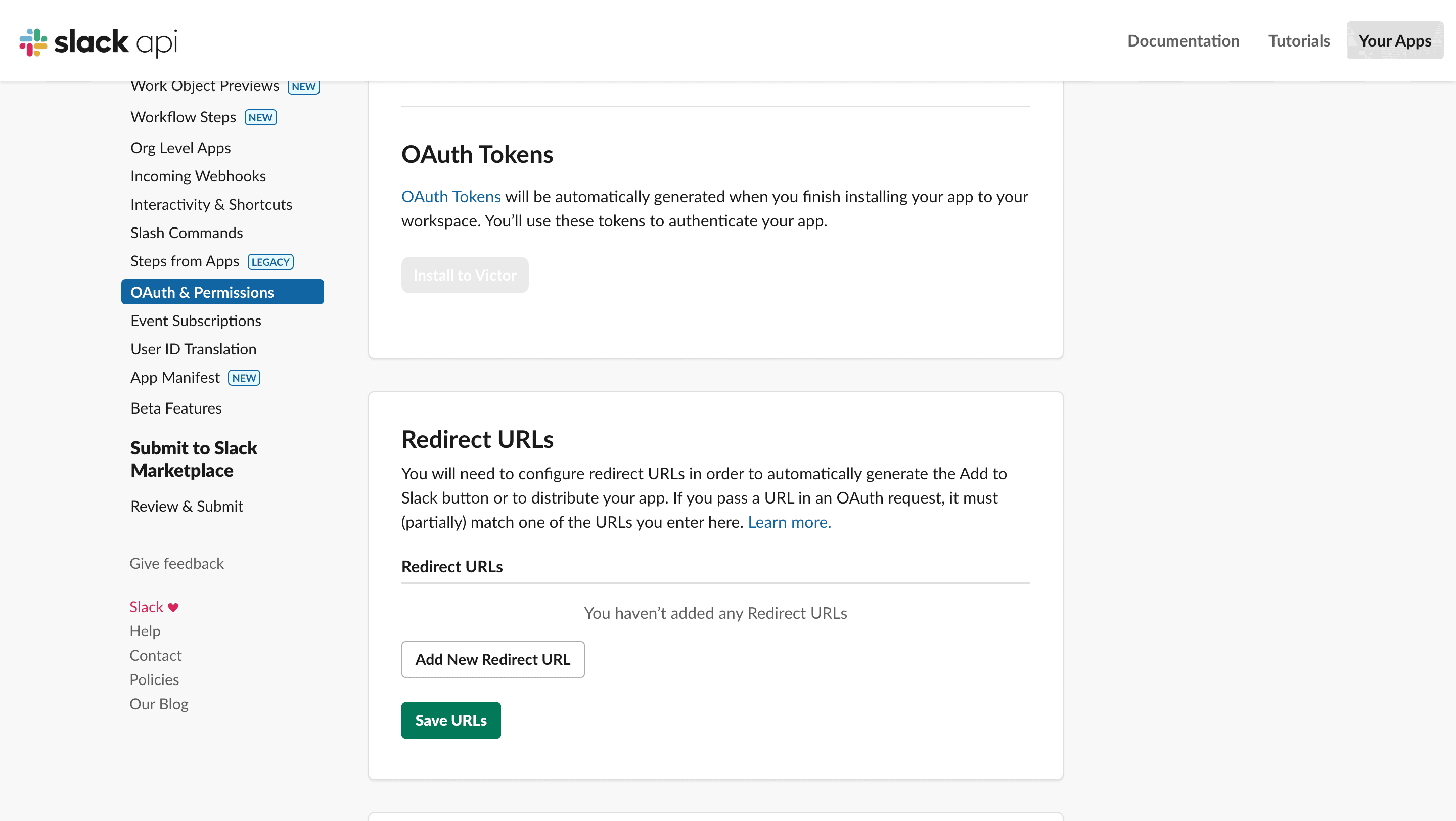
Scroll down to the Redirect URLs section.
3
Add a redirect URL
4
Paste the Novu callback URL
Paste the Novu OAuth callback URL. Add the redirect URL that matches your Novu region:
5
Save the URLs
Configure Slack integration in Novu
Once your Slack app is set up, the next step is to configure the Slack Chat integration inside Novu.1
Log in to the Novu dashboard
Open the Novu Dashboard.
2
Open Integrations Store
In the sidebar, click Integrations Store.
3
Connect a provider
In the Integration Store, click Connect provider to begin setup.
4
Select Slack
5
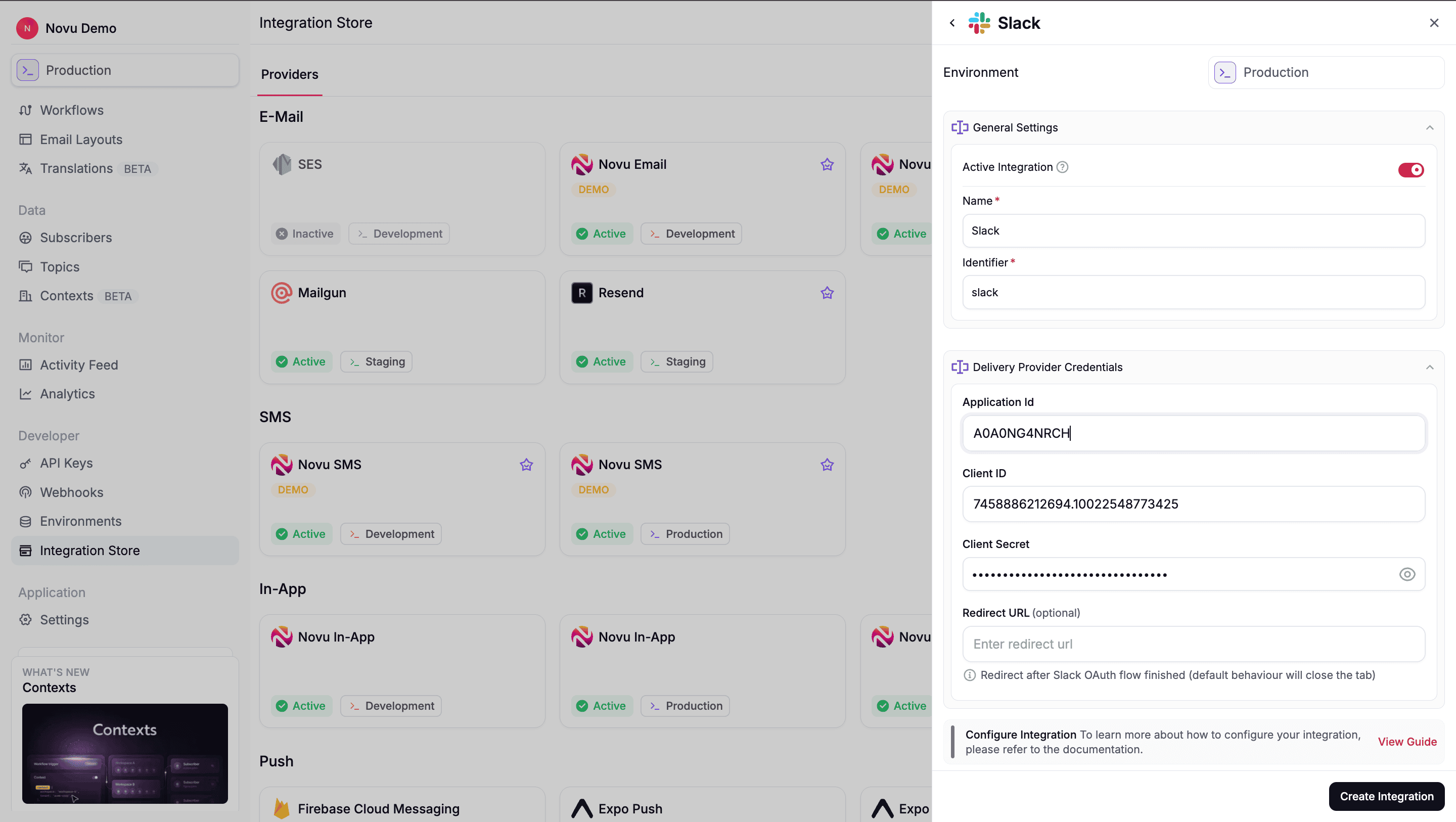
Fill in credentials
Fill in the required fields using the credentials from your Slack app:
- Application Id: Paste your Slack app App ID.
- Client ID: Paste your Slack App Client ID.
- Client Secret: Paste your Slack App Client Secret.
- Redirect URL (Optional): Enter the URL where you want users to be redirected to after they successfully connect their workspace. If there is no redirect URL, then Novu closes the tab immediately after the OAuth flow completes.
6
Create the integration
Click Create Integration to create the Slack integration. Once saved, Novu is able to:
- Generate OAuth (Connect Slack) URLs for your users
- Receive Slack’s OAuth callback.
- Store workspace tokens as connections.
Let users connect their Slack workspace
To send messages to Slack, your users must first authorize Novu to access one of their Slack workspaces. This authorization happens through Slack’s OAuth flow, which Novu generates and manages for you.Generate the OAuth URL
When a user clicks Connect Slack in your application, your backend should request a unique authorization URL from Novu. This URL is specific to the Subscriber or the Context (Tenant) it will be generated for.- Node.js
- Python
- Go
- PHP
- .NET
- Java
- cURL
Redirect the user
Once your backend returns theoauthUrl, open it in a new tab or window.
1
Review permissions
Reviewing your app’s requested permissions
2
Approve authorization
Approving the authorization
3
Redirect to Novu
Redirecting back to Novu’s callback URL
1
Novu exchanges the code
Novu stores the Slack access token for the connected workspace.
2
Novu creates a connection
Novu creates a Slack connection for that workspace, it is referenced by
connectionIdentifier when creating endpoints.You can also provider a custom connectionIdentifier to the generateChatOAuthUrl() and then connection with such identifier will be created instead of randomly generated one.Alternative: handle OAuth yourself. Instead of Provide at least one of
generateChatOAuthUrl(), you can run the Slack OAuth flow with your own app, use the access token with Slack’s APIs directly, then register the workspace with Novu via channelConnections.create (or POST /v1/channel-connections):subscriberId or context — same as the Novu-managed OAuth flow.Choose delivery destinations
After a workspace is connected, you or users decide where in Slack to send the messages. This can either be a Slack channel, to a user or an incoming webhook URLs. After the delivery location has been selected, a Slack endpoint is then created for that location.- Slack channel
- Slack user
- Incoming webhook
This is the typical flow for sending notifications to public or private channels.To learn more about using Slack conversations API to either get public or private channels, refer Slack documentation.
1
Get the channel ID
2
Create the endpoint
- Node.js
- Python
- Go
- PHP
- .NET
- Java
- cURL
Send notifications
Once you have at least one Slack connection, and one or more Slack endpoints. You can trigger the workflow:- Node.js
- Python
- Go
- PHP
- .NET
- Java
- cURL
1
Find Slack endpoints
Novu looks up Slack endpoints that match the subscriber ID and context.
2
Use the workspace connection
3
Deliver messages
Novu sends the notification to each configured Slack destination.
Using Slack with agents
Slack is a supported agent provider. Connect your Slack app to an agent so users can message in channels or DMs and get replies in the same thread — without building Slack event handling yourself.Build agents on Slack
Learn how Novu agents work, including managed and custom code agents.
What you get
When Slack is connected to an agent:- Users message your app in Slack and your agent responds in the same thread
- Conversations appear in the dashboard under Agent Conversations
- Supported content includes text, markdown, files, interactive cards, reactions, and typing indicators
Agent conversations vs. workflow notifications
Both can use the same Slack integration. Your agent handles back-and-forth conversations while workflows send updates such as deploy alerts to the same workspace.
Related
Agents and providers
Connect Slack and other providers to an agent.